TrustRadius: an HG Insights company

Save this comparison

Save this comparison

Add Product

Recommended Comparisons

    Overview
    ProductRatingMost Used ByProduct SummaryStarting Price

    ExamOnline

    Score10 out of 10
    N/AExamOnline is a cloud-based assessment management and remote proctoring platform from Diversified Business Solutions Pvt. Ltd., a Mumbai-based company established in 2009. It covers the full assessment lifecycle in one system: candidate registration, exam authoring, scheduling, delivery, proctoring, evaluation, results processing, analytics and digital certification. It is used by universities and colleges, certification bodies, government and public-sector organizations, training providers,…N/A

    TrustExam.ai

    N/A
    Enterprise companies (1,001+ employees)
    TrustExam.ai is a proctoring and assessment management platform designed for national-scale examination systems and educational organizations. It provides secure, automated supervision for both online and offline tests, ensuring identity verification, browser lockdown, and advanced cheating detection through behavioral analytics. The platform integrates with learning management systems and testing environments, supporting multi-language exams and accessibility…N/A
    Pricing
    ExamOnlineTrustExam.ai
    Editions & Modules
    No answers on this topic
    No answers on this topic
    Offerings
    Pricing Offerings
    ExamOnlineTrustExam.ai
    Free Trial
    NoNo
    Free/Freemium Version
    NoNo
    Premium Consulting/Integration Services
    YesYes
    Entry-level Setup FeeNo setup feeNo setup fee
    Additional DetailsPricing available on request.—
    More Pricing Information
    User Ratings
    ExamOnlineTrustExam.ai
    Likelihood to Recommend
    10.0
    (1 ratings)
    -
    (0 ratings)
    User Testimonials
    ExamOnlineTrustExam.ai
    Likelihood to Recommend
    ExamOnline
    We have successfully implemented 40+ incumbent onboardings with efficient proctoring. This is great as this allows us to operate remotely and securely.
    Read full review
    TrustExam.ai
    No answers on this topic
    ScreenShots

    ExamOnline Screenshots

    Product screenshotProduct screenshotProduct screenshotProduct screenshotProduct screenshotProduct screenshot

    TrustExam.ai Screenshots

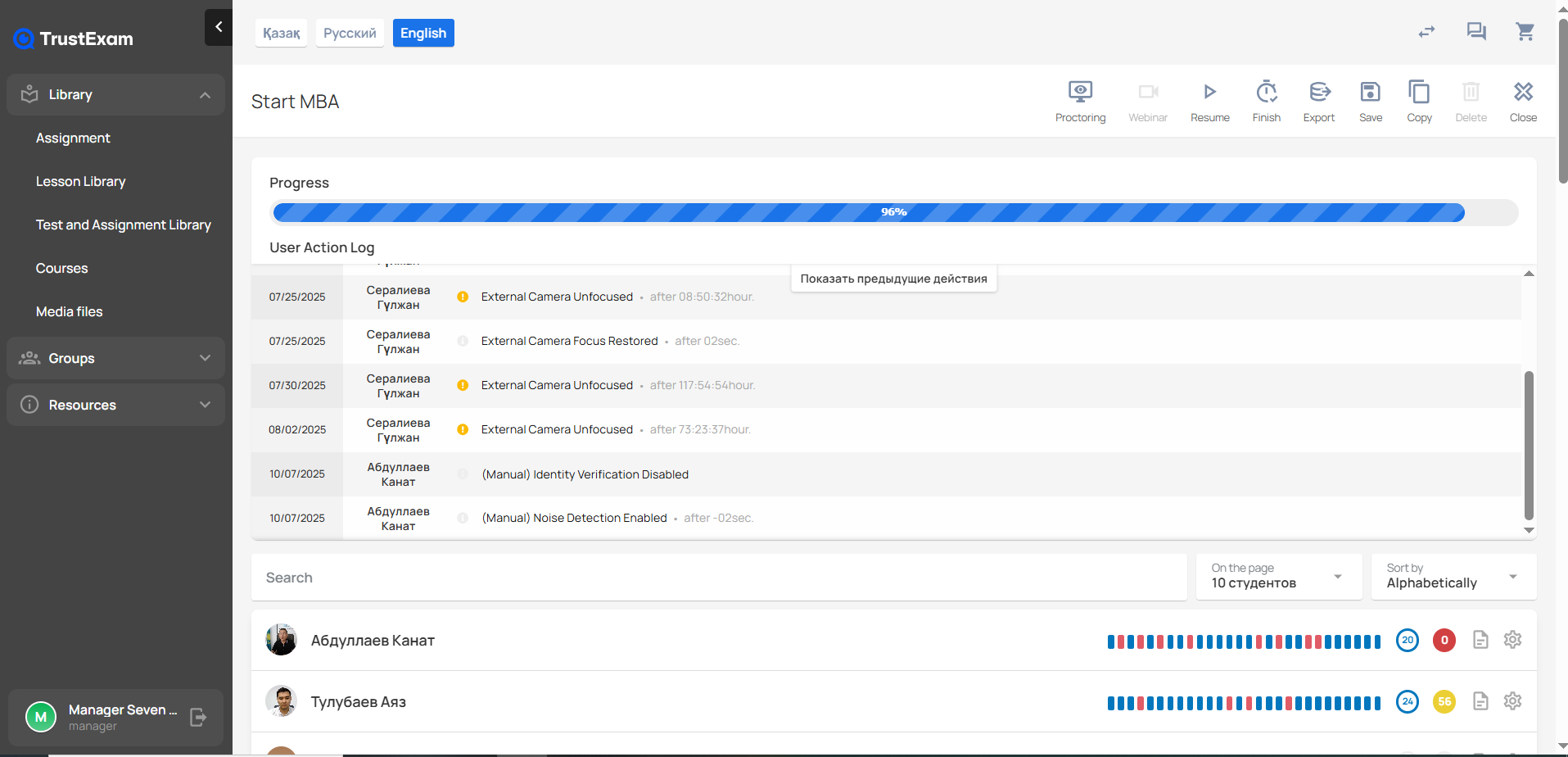
    Screenshot of the TrustExam administrator interface for monitoring the Start MBA course session. At the top, the system shows the overall Progress bar, which is nearly complete at 96%.

Below, the User Action Log lists recent proctoring-related events for multiple users. Each entry includes the date, the participant’s name, an event type, and additional details. Logged events include issues such as “External Camera Unfocused,” “External Camera Focus Restored,” and manual administrative actions like “Identity Verification Disabled” and “Noise Detection Enabled.” Each event also includes a timestamp indicating when it occurred relative to the session start.

On the right side of the top panel, quick-action buttons are shown for proctoring, webinar mode, resuming the session, finishing, exporting, saving, copying, deleting, and closing.

Further down, a searchable list of participants is displayed. Each participant card shows their profile photo, name, and a horizontal activity timeline composed of colored markers that represent different types of proctoring events or interactions. Next to each participant’s activity bar, numeric badges show counts of specific alerts or behaviors detected during the exam.

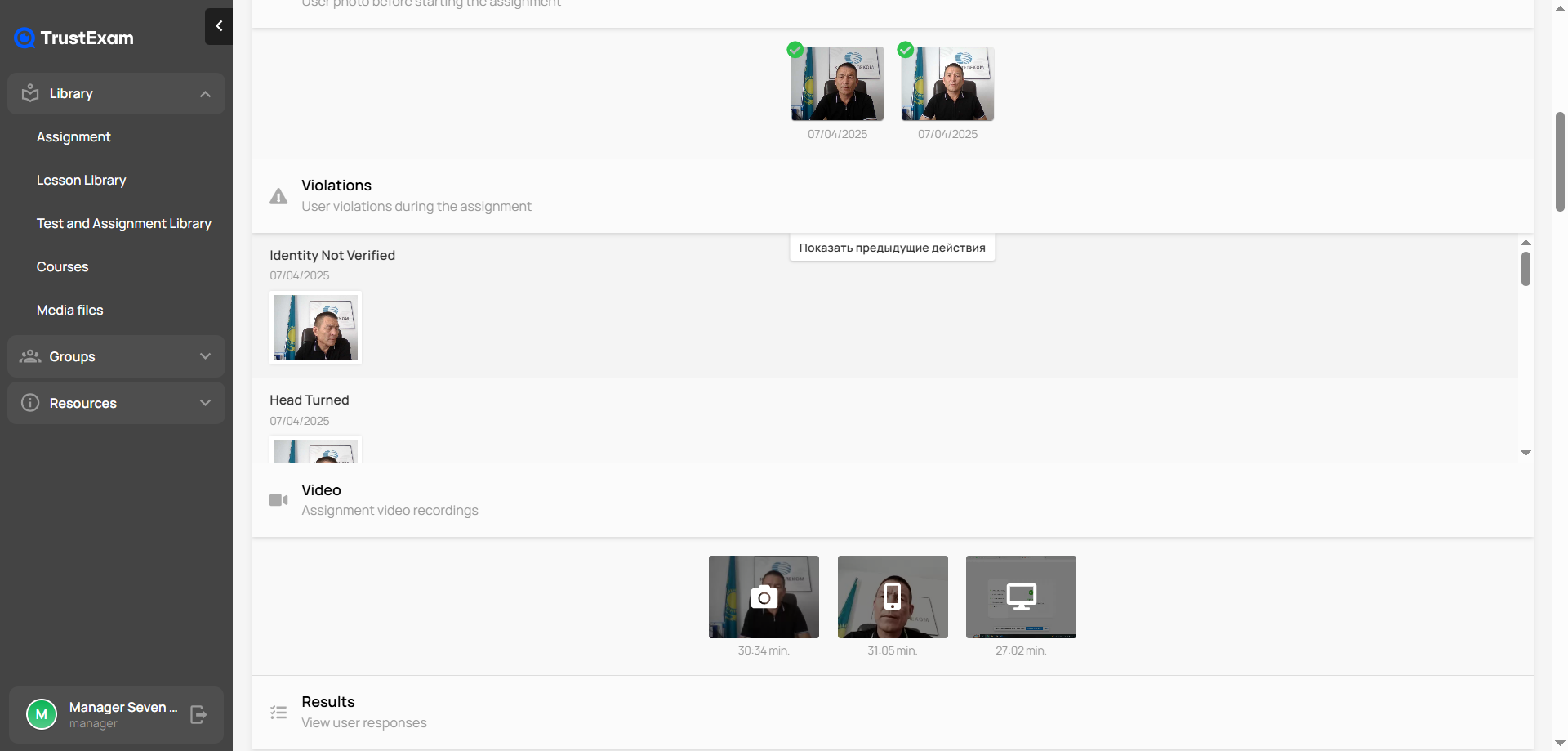
The left sidebar includes the main navigation menu with sections such as Library, Assignment, Lesson Library, Test and Assignment Library, Courses, Media files, Groups, and Resources.Screenshot of the TrustExam proctoring interface displaying a detailed record of a student’s exam session. At the top, the system shows the user’s verification photos taken before the assignment, both marked as successfully approved. Below, in the Violations section, the platform has flagged two events: “Identity Not Verified” and “Head Turned,” each with a timestamp and a corresponding captured frame.

Further down, the Video section contains the full recordings of the session, presented as thumbnails with timestamps indicating the duration of each clip. At the bottom, there is a Results section where the examiner can view the student’s recorded responses. The left side of the interface shows the main navigation menu with modules such as Library, Assignment, Courses, Media files, Groups, and Resources.