
ExamSoft vs. TrustExam.ai
| Product | Rating | Most Used By | Product Summary | Starting Price |
|---|---|---|---|---|
 ExamSoft | Score6.7 out of 10 | N/A | ExamSoft, from Turnitin since the late 2020 acquisition, provides secure digital exams without internet connectivity during testing. ExamSoft offers many digital question types including multiple choice, hot spot, matching, and more without requiring an internet connection during exam time. It features tools to deter academic dishonesty with =device lock-down and solutions such as ExamID for auto-identity verification and ExamMonitor for remote proctoring. | N/A |
 TrustExam.ai | N/A | Enterprise companies (1,001+ employees) | TrustExam.ai is a proctoring and assessment management platform designed for national-scale examination systems and educational organizations. It provides secure, automated supervision for both online and offline tests, ensuring identity verification, browser lockdown, and advanced cheating detection through behavioral analytics. The platform integrates with learning management systems and testing environments, supporting multi-language exams and accessibility… | N/A |
| ExamSoft | TrustExam.ai | |||||||||||||||
|---|---|---|---|---|---|---|---|---|---|---|---|---|---|---|---|---|
| Editions & Modules | No answers on this topic | No answers on this topic | ||||||||||||||
| Offerings |
| |||||||||||||||
| Entry-level Setup Fee | No setup fee | No setup fee | ||||||||||||||
| Additional Details | — | — | ||||||||||||||
| More Pricing Information | ||||||||||||||||
| ExamSoft | TrustExam.ai | |
|---|---|---|
| Likelihood to Recommend | 9.0 | - |
| Usability | 9.0 | - |
| ExamSoft | TrustExam.ai | |
|---|---|---|
| Likelihood to Recommend |
| No answers on this topic |
| Pros |
| No answers on this topic |
| Cons |
| No answers on this topic |
| Usability |
| No answers on this topic |
| Alternatives Considered |
| No answers on this topic |
| Return on Investment |
| No answers on this topic |
| ScreenShots | TrustExam.ai Screenshots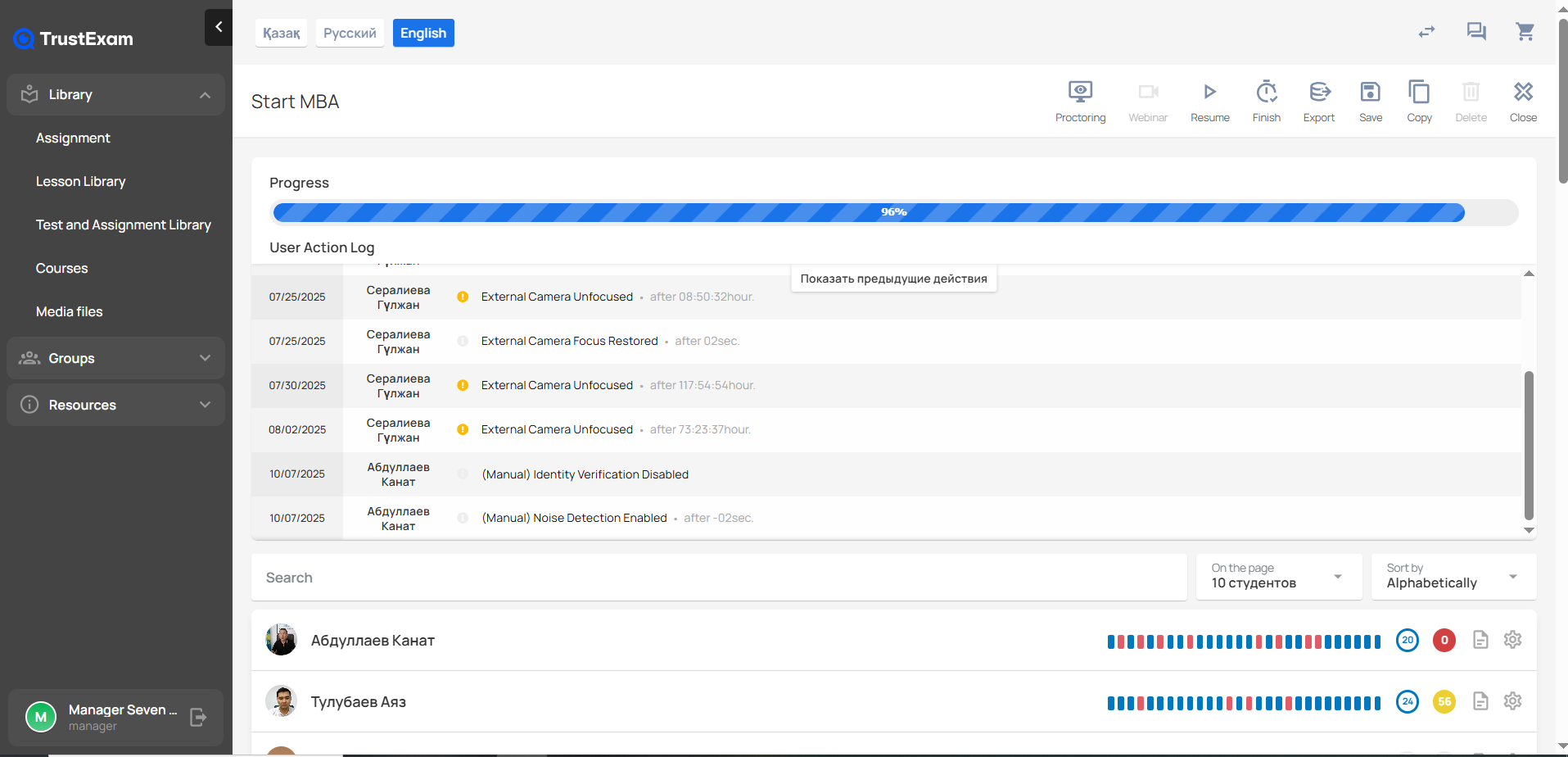 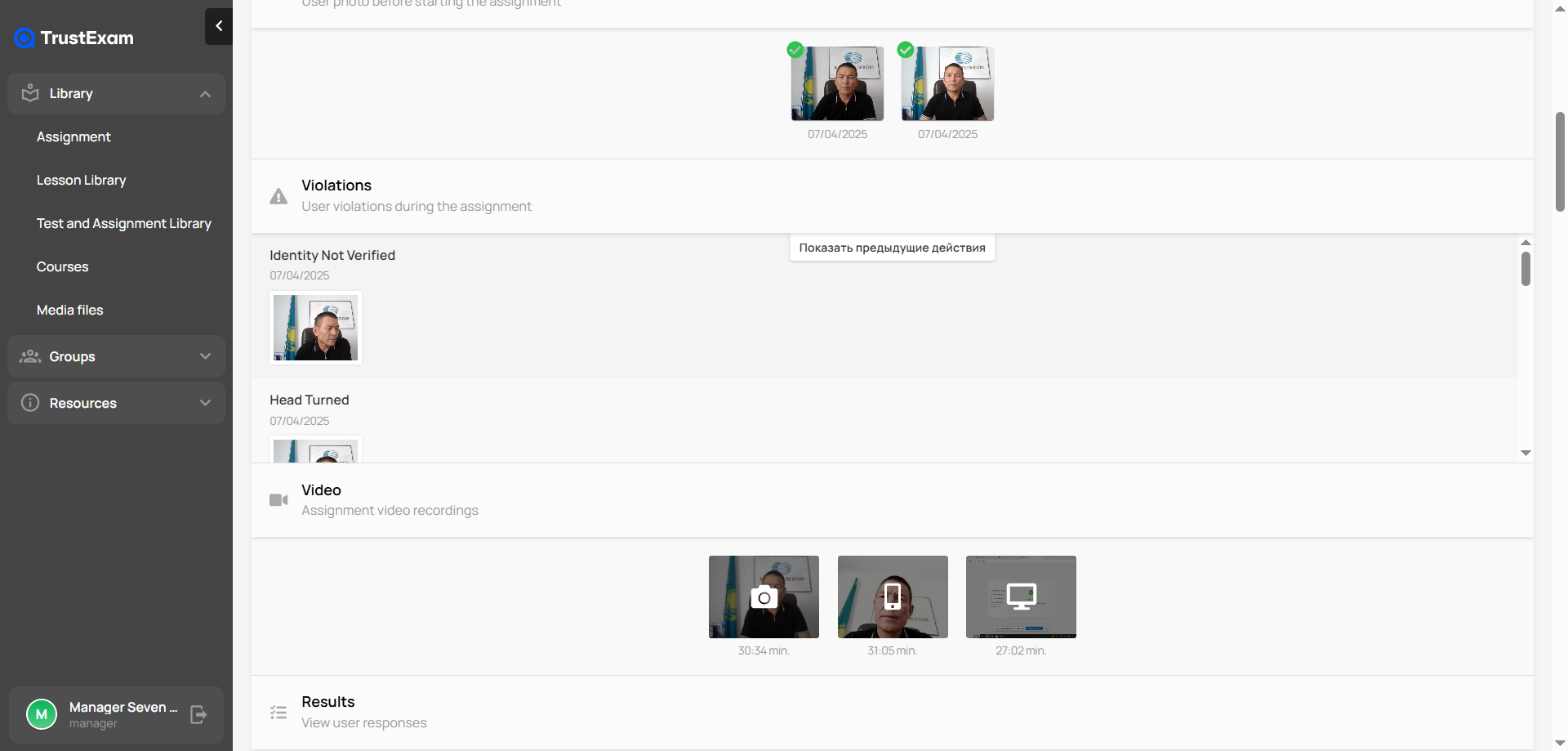 |
