TrustRadius: an HG Insights company

What is TrustExam.ai?

TrustExam.ai is a proctoring and assessment management platform designed for national-scale examination systems and educational organizations. It provides secure, automated supervision for both online and offline tests, ensuring identity verification, browser lockdown, and advanced cheating detection through behavioral analytics. The platform integrates with learning management systems and testing environments, supporting multi-language exams and accessibility compliance.

Available to government institutions and universities, TrustExam.ai aims to enable large-scale testing operations while maintaining fairness, transparency, and full GDPR/ISO 27001 compliance. Its modular architecture allows customization for public sector, licensing, and certification exams, making it suitable for both academic and professional use.

Categories & Use Cases

Videos

Screenshots
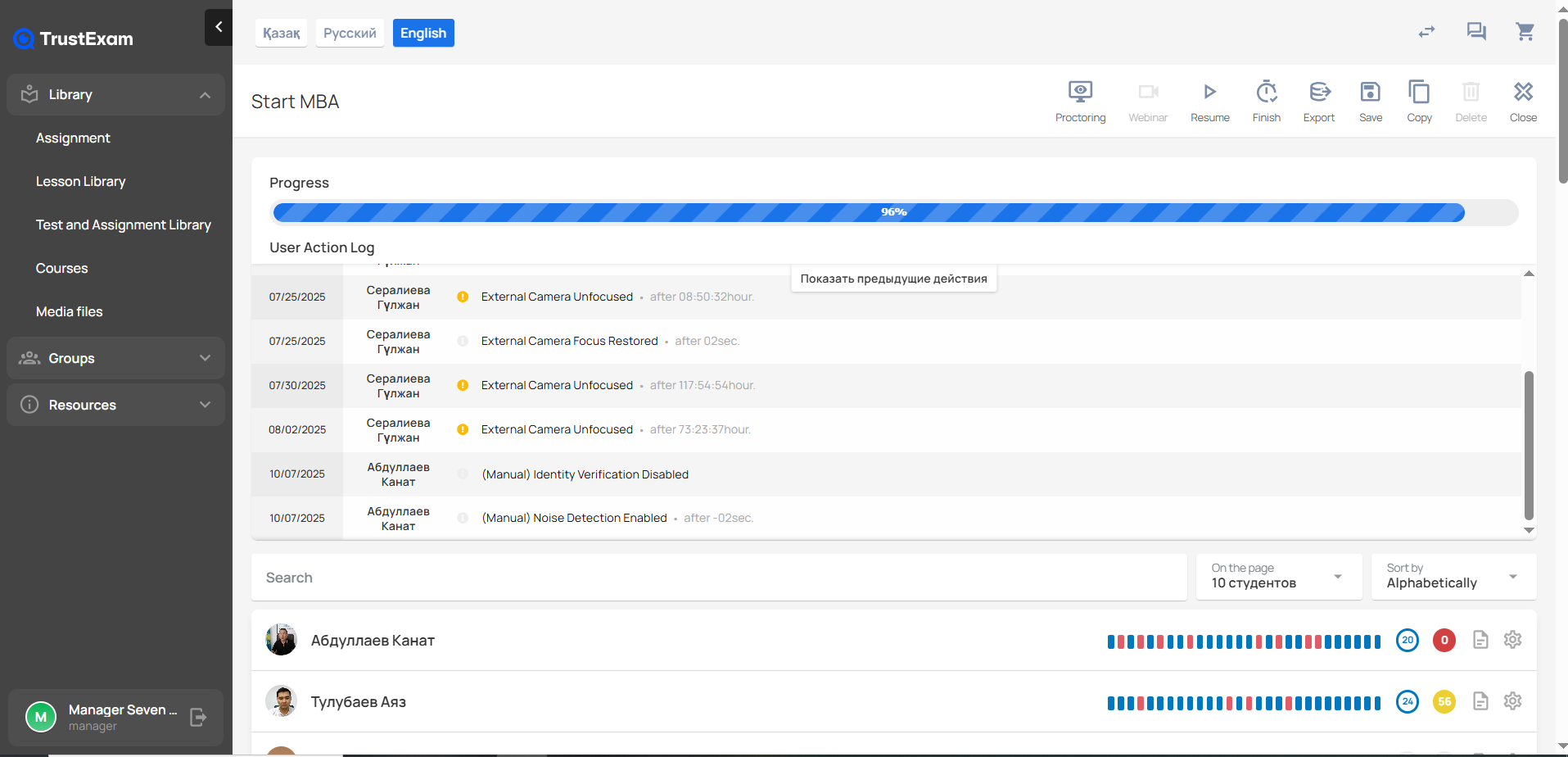
Screenshot of the TrustExam administrator interface for monitoring the Start MBA course session. At the top, the system shows the overall Progress bar, which is nearly complete at 96%.

Below, the User Action Log lists recent proctoring-related events for multiple users. Each entry includes the date, the participant’s name, an event type, and additional details. Logged events include issues such as “External Camera Unfocused,” “External Camera Focus Restored,” and manual administrative actions like “Identity Verification Disabled” and “Noise Detection Enabled.” Each event also includes a timestamp indicating when it occurred relative to the session start.

On the right side of the top panel, quick-action buttons are shown for proctoring, webinar mode, resuming the session, finishing, exporting, saving, copying, deleting, and closing.

Further down, a searchable list of participants is displayed. Each participant card shows their profile photo, name, and a horizontal activity timeline composed of colored markers that represent different types of proctoring events or interactions. Next to each participant’s activity bar, numeric badges show counts of specific alerts or behaviors detected during the exam.

The left sidebar includes the main navigation menu with sections such as Library, Assignment, Lesson Library, Test and Assignment Library, Courses, Media files, Groups, and Resources.
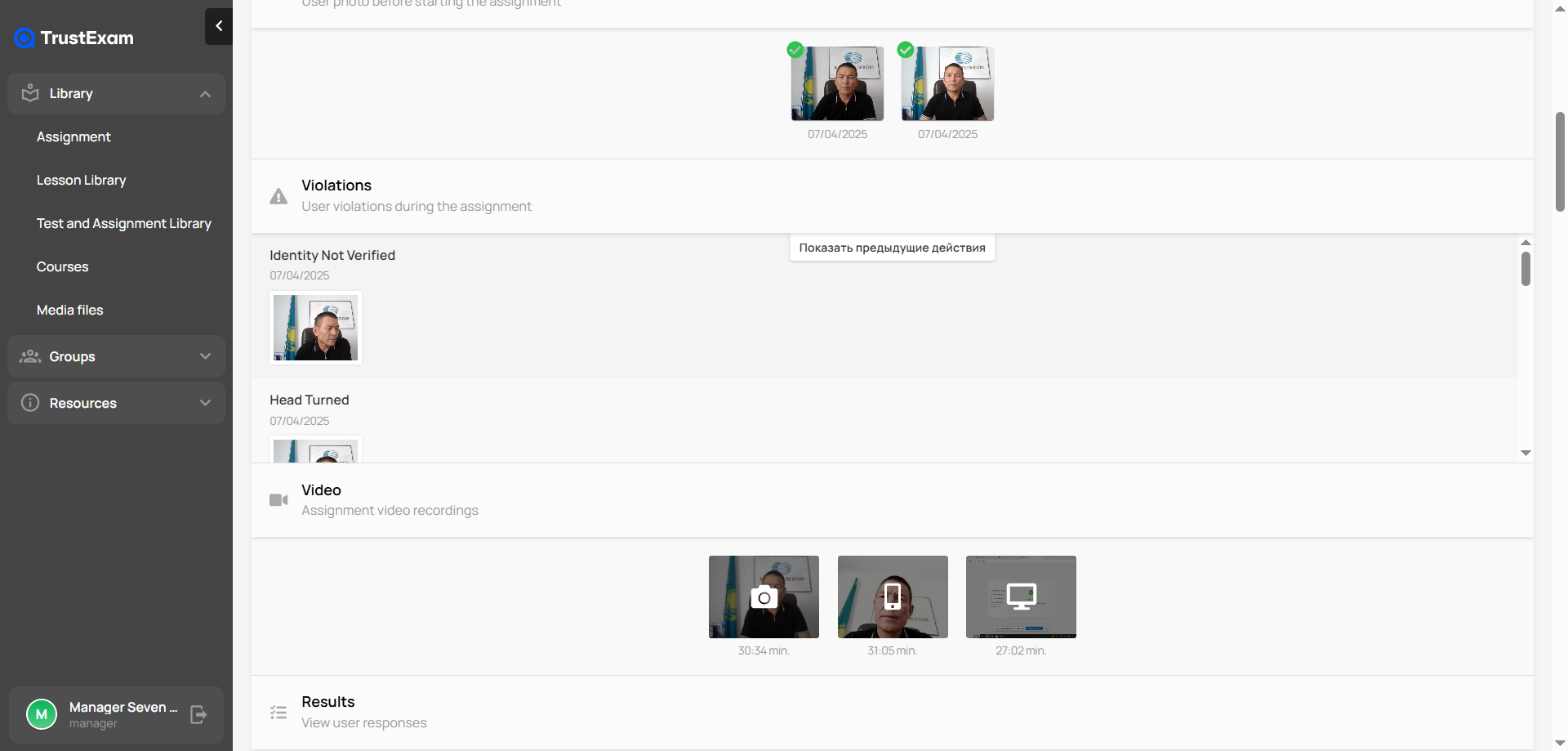
Screenshot of the TrustExam proctoring interface displaying a detailed record of a student’s exam session. At the top, the system shows the user’s verification photos taken before the assignment, both marked as successfully approved. Below, in the Violations section, the platform has flagged two events: “Identity Not Verified” and “Head Turned,” each with a timestamp and a corresponding captured frame.

Further down, the Video section contains the full recordings of the session, presented as thumbnails with timestamps indicating the duration of each clip. At the bottom, there is a Results section where the examiner can view the student’s recorded responses. The left side of the interface shows the main navigation menu with modules such as Library, Assignment, Courses, Media files, Groups, and Resources.

1 / 2

Screenshot of the TrustExam administrator interface for monitoring the Start MBA course session. At the top, the system shows the overall Progress bar, which is nearly complete at 96%. Below, the User Action Log lists recent proctoring-related events for multiple users. Each entry includes the date, the participant’s name, an event type, and additional details. Logged events include issues such as “External Camera Unfocused,” “External Camera Focus Restored,” and manual administrative actions like “Identity Verification Disabled” and “Noise Detection Enabled.” Each event also includes a timestamp indicating when it occurred relative to the session start. On the right side of the top panel, quick-action buttons are shown for proctoring, webinar mode, resuming the session, finishing, exporting, saving, copying, deleting, and closing. Further down, a searchable list of participants is displayed. Each participant card shows their profile photo, name, and a horizontal activity timeline composed of colored markers that represent different types of proctoring events or interactions. Next to each participant’s activity bar, numeric badges show counts of specific alerts or behaviors detected during the exam. The left sidebar includes the main navigation menu with sections such as Library, Assignment, Lesson Library, Test and Assignment Library, Courses, Media files, Groups, and Resources.

Technical Details

Technical Details
Deployment TypesOn-Premise, SaaS
Operating SystemsWindows, Mac
Mobile ApplicationNo
Supported CountriesKazakhstan, Russian Federation, Canada
Supported LanguagesEnglish, Kazakh, Russian

FAQs

What are TrustExam.ai's top competitors?
Talview, ExamSoft, and Honorlock are common alternatives for TrustExam.ai.
Who uses TrustExam.ai?
The most common users of TrustExam.ai are from Enterprise.