UiPath Task Capture vs. Videolink

Overview
ProductRatingMost Used ByProduct SummaryStarting Price
UiPath Task Capture
Score 9.4 out of 10
N/A
UiPath Task Capture (formerly StepShot, acquired October 2019) is a tool designed for quick and easy step-by-step documentation. During a recording mode, the software creates a separate screenshot on every click, groups them into a manual with automatically added metadata. Users can annotate captured images and structure documents in the way they want them to look.N/A
Videolink
Score 9.1 out of 10
N/A
Videolink brings clarity and collaboration to team conversations through video recording, sharing and instant playback. It can be used to record a screen or camera in seconds, send a link, and add visual context to information – whether it’s customer feedback, internal updates, or product walkthroughs. Instead of chasing down details in chat logs or ambiguous tickets, Videolink lets teams share ideas that are clear, direct, and…
$0
per active video
Pricing
UiPath Task CaptureVideolink
Editions & Modules
No answers on this topic
Free
$0
per month Up to 25 active videos and unlimited users
Pro
$20
per month For 100 active videos and unlimited users
Advanced
Custom Plans
Offerings
Pricing Offerings
UiPath Task CaptureVideolink
Free Trial
YesNo
Free/Freemium Version
YesYes
Premium Consulting/Integration Services
YesNo
Entry-level Setup FeeNo setup feeOptional
Additional DetailsWe have some discounts available all the time depending on the amount of ordered licenses.Only saved videos are counted. If a video is deleted, it only counts for the month it was active — never after. Videolink has no per-seat usage fees. You’re only billed for videos your team actually keeps.
More Pricing Information
Community Pulse
UiPath Task CaptureVideolink
Best Alternatives
UiPath Task CaptureVideolink
Small Businesses
Sendspark
Sendspark
Score 10.0 out of 10
Sendspark
Sendspark
Score 10.0 out of 10
Medium-sized Companies
Snagit
Snagit
Score 9.6 out of 10
Snagit
Snagit
Score 9.6 out of 10
Enterprises
Snagit
Snagit
Score 9.6 out of 10
Snagit
Snagit
Score 9.6 out of 10
All AlternativesView all alternativesView all alternatives
User Ratings
UiPath Task CaptureVideolink
Likelihood to Recommend
8.0
(6 ratings)
9.1
(2 ratings)
Usability
-
(0 ratings)
9.1
(2 ratings)
Support Rating
10.0
(1 ratings)
-
(0 ratings)
User Testimonials
UiPath Task CaptureVideolink
Likelihood to Recommend
UiPath
StepShot is perfect for showing your audience how they are supposed to navigate a new system you have implemented. You can take them from a login screen all the way through any technical process you want them to follow. The product is not ideal, however, for documenting a process that does not have tangible steps. For example, a process we have created includes some reflective thinking about alignment or outcomes in order to work, this can be articulated in the text area of the screen captures but doesn't really capture our message.
Read full review
Videolink
The way we work is evolving. Remote teams — especially after the COVID-19 pandemic — rely more than ever on tools that bridge the gap between distance and real-time collaboration.
Asynchronous updates have become a key part of solving daily challenges, and we’ve seen the benefits first-hand as an organisation.
Read full review
Pros
UiPath
  • Easily capture process as you're going through it
  • Easily edit the captured process
  • Add new steps/slides into the process as needed after it's captured
Read full review
Videolink
  • Quick video sharing
  • Basic editing
  • Inline comments
Read full review
Cons
UiPath
  • The "export & publish" button is kind of tiny and tucked away. It should be more prominent. After not using it for a couple weeks, I always forget where it is.
  • Updates aren't as frequent. Which is fine, since I haven't come across many bugs, it would just be cool to see some added features/functionality a bit more often.
  • The blur looks fine in the preview mode, but when exported, it's not the best.
Read full review
Videolink
  • More video editing tools
Read full review
Usability
UiPath
No answers on this topic
Videolink
The interface is clean, and features like video requests, in-browser editing, and commenting make the workflow seamless for our team.
Read full review
Support Rating
UiPath
I have only run into an issue once, which I believe was due to a newly released feature (cloud storage). I was running into issues with the functionality on my Mac. The team was incredibly helpful in both troubleshooting the issue by jumping on screen sharing sessions, as well as providing multiple releases for me to test to fix the problem!
Read full review
Videolink
No answers on this topic
Alternatives Considered
UiPath
  • UiPath Task capture helped me in my requirement gathering in a project.
  • Helped to record the process
  • Capture the Screen
  • Process recording for future reference while developing the tasks
Read full review
Videolink
No answers on this topic
Return on Investment
UiPath
  • This has saved us MANY HOURS in either walking clients through processes in person or having to create a one-off guide through taking screenshots and creating our own documents with the screenshots hand placed.
  • Client satisfaction is high when they receive these guides. It is documentation that they can refer to at anytime that is personalized to their use or individual needs.
Read full review
Videolink
  • Productivity
  • Delivery-driven communication
Read full review
ScreenShots

UiPath Task Capture Screenshots

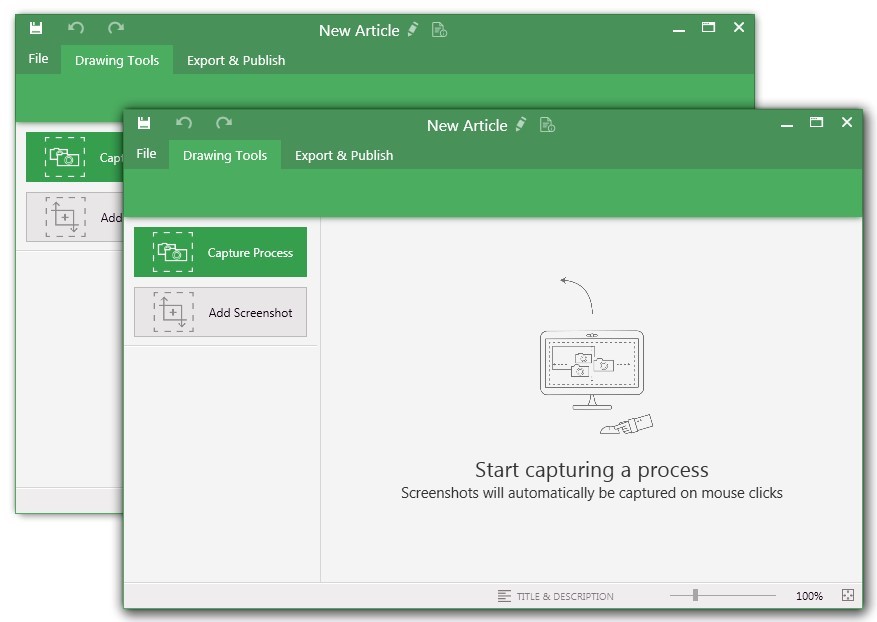
Screenshot of You may record the needed area of take a separate screenshotScreenshot of Open menu (1) to be able to save this document to another location, share or publish it somewhere on your computer or remote service.
To create your documentation, use recording buttons (2) (discussed in "Recording" article later). All recorded steps and single screenshots are displayed in the outline panel (3). To group steps into sections, right click on empty space inside the outline panel and click on "Add section" option.
Annotate the selected step image (5) with drawings (7). Then update step title and description (6) to tell the user what he/she needs to do.Screenshot of Create manuals that contain guidesScreenshot of Exporting options. Choose the template (1) and set export settings such as quality and image size (2). Then export the document (3) to a specific location. 
Export settings are the same for all export formats.

Videolink Screenshots

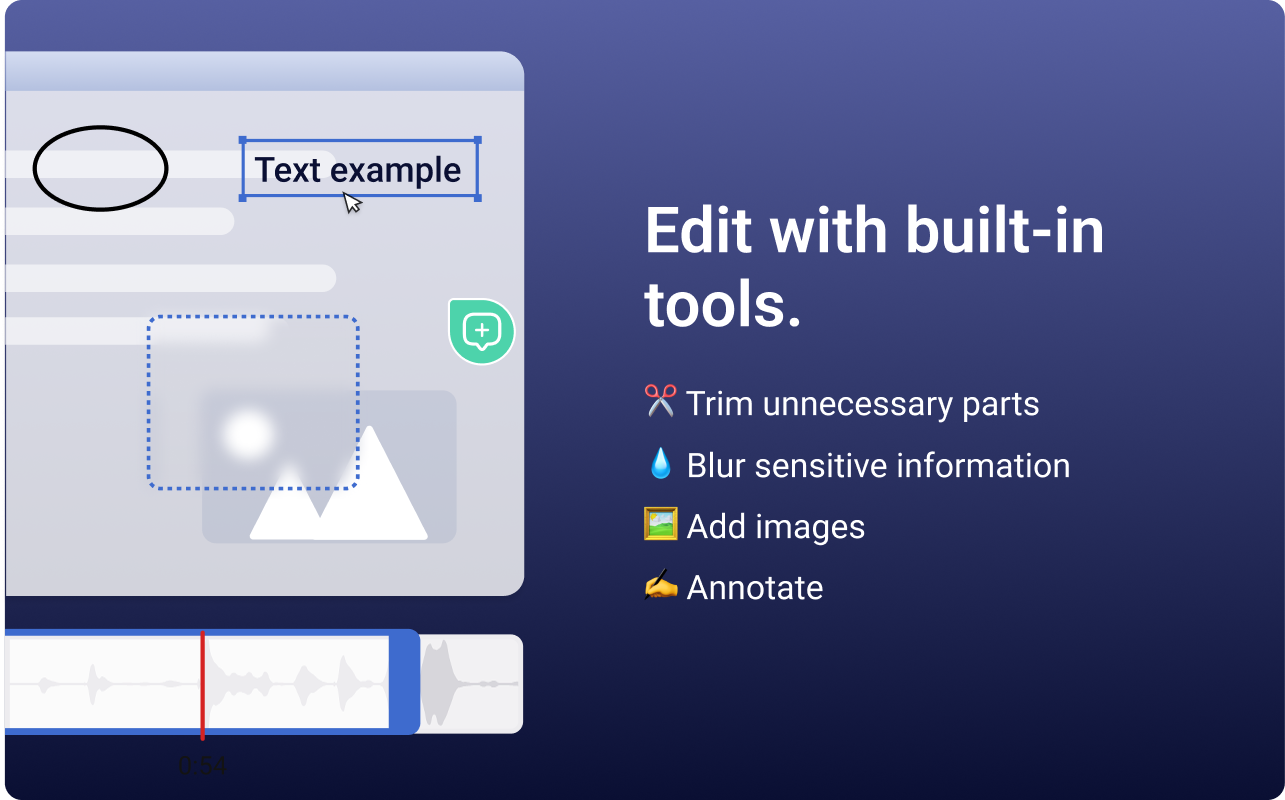
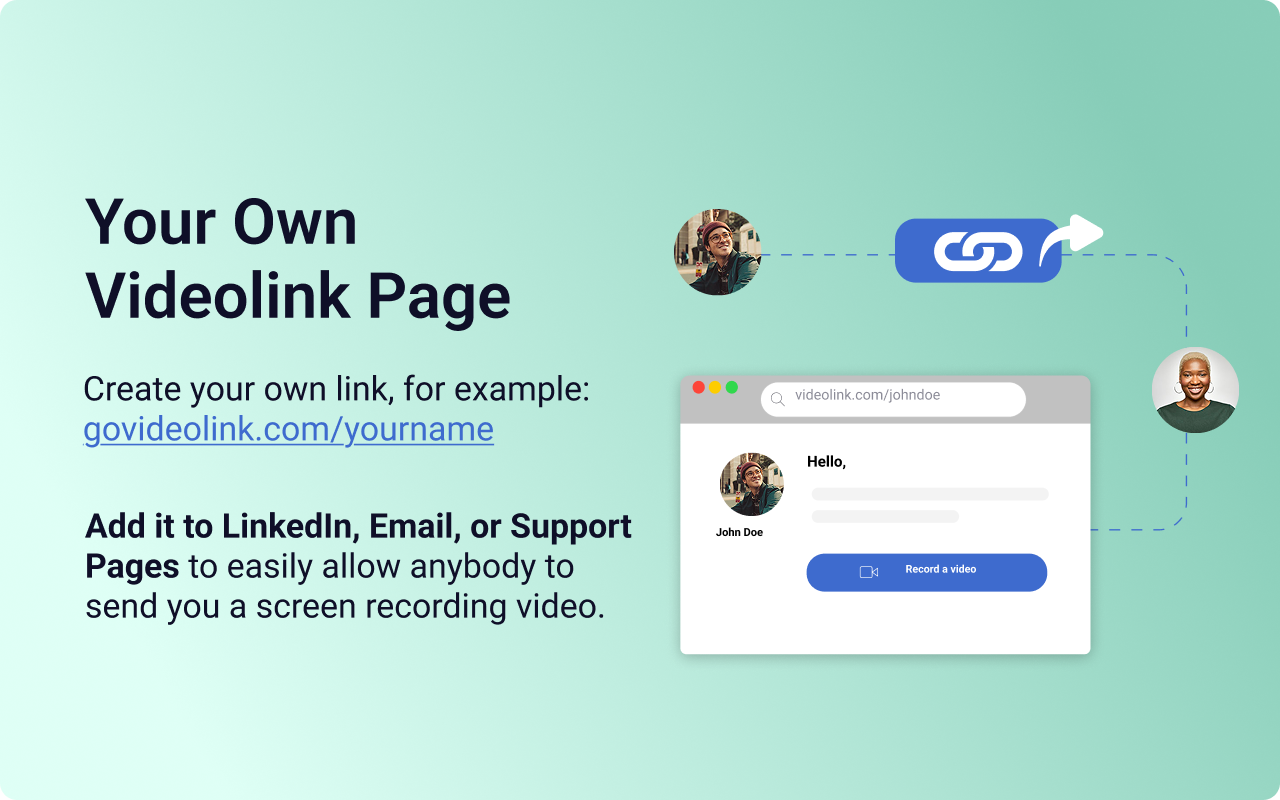
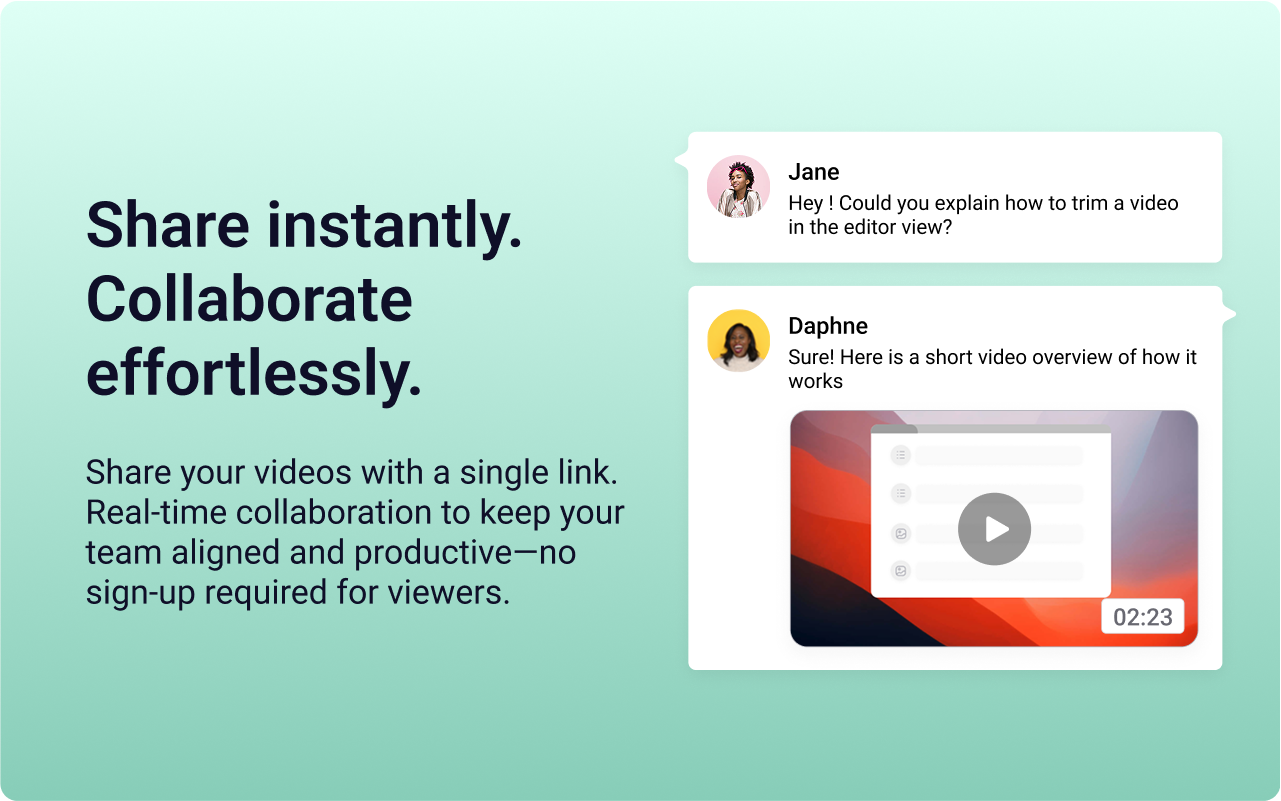
Screenshot of the Videolink editor, used to trim out excess content, blur sensitive info, annotate key areas, and insert images.Screenshot of a Videolink page, used to create a personal shareable link – like govideolink.com/yourname – that lets anyone send a recorded video directly.Screenshot of single link sharing, so viewers don’t need an account to watch, comment, or provide feedback.