Microsoft System Center is an enterprise-grade IT Operations Management (ITOM) suite designed for the centralized administration of data center infrastructure, virtualized environments, and hybrid cloud workloads. The platform provides unified management across heterogeneous environments, including support for Windows Server, Linux, and Azure Stack HCI.
System Center is Microsoft's ITOM stack for organizations that maintain a significant on-premise footprint, vs the company's Azure-based…
$1,323
per month
RealVNC Connect
Score8.9 out of 10
N/A
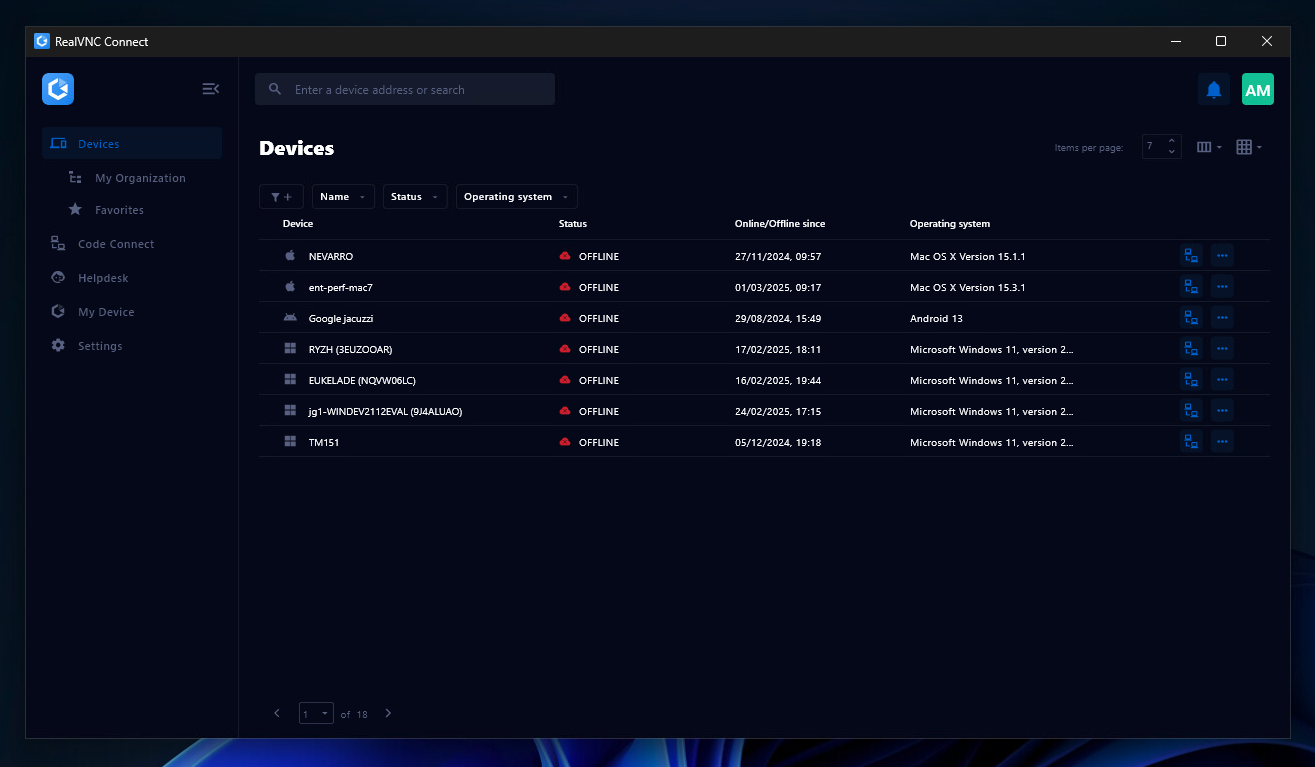
RealVNC® Connect is a secure remote access solution from RealVNC. It can be used to connect to a remote device anywhere in the world to view its desktop in real-time and take control as though sitting in front of it.
$99
per year (one concurrent session)
Pricing
Microsoft System Center
RealVNC Connect
Editions & Modules
Standard Edition
$1323
Datacenter Edition
$3607
Essentials
$8.25
per month (billed annually) per concurrent session
Plus
$16.50
per month (billed annually) per concurrent session (add up to 3)
Premium
$29.75
per month (billed annually) per concurrent session (add up to 5)
Enterprise
Custom Pricing
per year
Enterprise
Custom Pricing
Offerings
Pricing Offerings
Microsoft System Center
RealVNC Connect
Free Trial
No
Yes
Free/Freemium Version
No
Yes
Premium Consulting/Integration Services
No
No
Entry-level Setup Fee
No setup fee
No setup fee
Additional Details
—
Plans work on a Per Concurrent Session basis. Each plan gives access to a bundled number of devices, but limits apply to the amount of devices that can be connected at any given time.
The Premium plan includes On-Demand Assist, a useful tool for providing just-in-time remote support to end-users without them needing RealVNC Connect installed on their device.
For companies with more than 10 Windows devices and needing to standardize the OS, AV, access, share resources, and install software. SCCM is the way to go. This software is unnecessary if the business is all remote users and not in an office-type setting. There are cloud offerings or none to accomplish what a business needs.
A de minimis incentive was given to thank the reviewer for their time. The incentive was not used to bias or drive a particular response, nor was the incentive contingent on a positive endorsement. More Info
It is very easy to use if the remote device is already set up to receive connections, so if you are setting up devices before deploying them, it is a great tool to have. It is well-suited to use when shadowing users or using it as a teaching tool. There are other products that are better if you are trying to help someone on a one-use basis.
A de minimis incentive was given to thank the reviewer for their time. The incentive was not used to bias or drive a particular response, nor was the incentive contingent on a positive endorsement. More Info
A de minimis incentive was given to thank the reviewer for their time. The incentive was not used to bias or drive a particular response, nor was the incentive contingent on a positive endorsement. More Info
VNC Connect does an excellent job in remotely connecting to a computer through either your local area network or even another computer on the internet. As long as the VNC Connect services is installed and the client is running in the background.
VNC Connect provides password protection to prevent unauthorized users from attempting to remotely access your computer. There's an option to have a separate password to remotely view vs view & access a computer. You can even add an additional level of security by turning on the feature to require Windows login credentials.
VNC Connect provides an additional set of controls after a remote connection has been established with another computer. You can have special keystrokes like Ctrl+Alt+Del sent as a command sequence to the other computer as well as access more than a single screen when in use at the remote computer location.
A de minimis incentive was given to thank the reviewer for their time. The incentive was not used to bias or drive a particular response, nor was the incentive contingent on a positive endorsement. More Info
The product could improve in the area of having better mechanisms in place with how the SCEP client is deployed/installed from the server on the management side. We have run into this firsthand with the client not installing on an endpoint, and then having to take the time to investigate why it was not installing.
A second improvement that can be made is to keep trying to improve the products detection rate for finding malware/viruses. The case can be made that there are some products out there that do a better job at this and have a higher detection rate.
A de minimis incentive was given to thank the reviewer for their time. The incentive was not used to bias or drive a particular response, nor was the incentive contingent on a positive endorsement. More Info
A de minimis incentive was given to thank the reviewer for their time. The incentive was not used to bias or drive a particular response, nor was the incentive contingent on a positive endorsement. More Info
A de minimis incentive was given to thank the reviewer for their time. The incentive was not used to bias or drive a particular response, nor was the incentive contingent on a positive endorsement. More Info
VNC is a solid product for the price. It simply works and its reliable across different platforms. Some products state they work well in the Mac environment but don't deliver. This one does what it says. Connections are reliable, but of course, this depends on internet connections. The product works well over wireless connections as well. It delivers on what a remote tool should deliver on. My technicians are happy with the product and customers appreciate the ease of use when letting us connect to their systems. Some also appreciate the remote support while they are multi-task.
A de minimis incentive was given to thank the reviewer for their time. The incentive was not used to bias or drive a particular response, nor was the incentive contingent on a positive endorsement. More Info
It is not user-friendly for the most part. With IT infrastructure, sometimes it cannot handle excess requests. Every few months, you will need an upgrade in terms of server resources to keep up with incoming alerts and requests. This does not happen all of the time, but it does happen when there are too many requests.
A de minimis incentive was given to thank the reviewer for their time. The incentive was not used to bias or drive a particular response, nor was the incentive contingent on a positive endorsement. More Info
It's a niche product and in that niche they try to cater to as many use cases as they can. Other as a TCO aspect i don't see many use cases where you can't use this product as the one tool for all remote session use cases in your company
A de minimis incentive was given to thank the reviewer for their time. The incentive was not used to bias or drive a particular response, nor was the incentive contingent on a positive endorsement. More Info
There is a fair amount of documentation out there to help you when you have questions or run into issues with this product as well as tutorials on some of the more common tasks. Between the documentation and the overall ease of use we haven't had to deal with direct Microsoft support for this product.
A de minimis incentive was given to thank the reviewer for their time. The incentive was not used to bias or drive a particular response, nor was the incentive contingent on a positive endorsement. More Info
VNC Connect is a reliable product that has been around for a long time. It is reasonably priced and works well in the Mac & PC environment. When you have a small team that supports many users we need tools that we can rely upon and that will get the job done on the first try. Many customers appreciate the quick assistance and can multi-task while our team works on their computer issues remotely. From a customer service point of view, this tool gives us transparency and efficient effectiveness.
A de minimis incentive was given to thank the reviewer for their time. The incentive was not used to bias or drive a particular response, nor was the incentive contingent on a positive endorsement. More Info
The training is very informative, quick and to the point. All of the details one would need are present so the user doesn't have to go searching for additional information just to use the application. The layout of the training was also neat and concise, some of the other training sessions for other companies I've done in the past were confusing and not well thought out, this one is much more superior
A de minimis incentive was given to thank the reviewer for their time. The incentive was not used to bias or drive a particular response, nor was the incentive contingent on a positive endorsement. More Info
A de minimis incentive was given to thank the reviewer for their time. The incentive was not used to bias or drive a particular response, nor was the incentive contingent on a positive endorsement. More Info
We previously used a mix of FOG and Clonezilla to image machines. The biggest issues with these products is that changing one piece of the image required you to rebuild the entire image itself. These pieces of software also did not allow you to manage applications and Windows Updates, causing IT to have to constantly touch machines after they were imaged and update or manage them with a much more hands on approach.
A de minimis incentive was given to thank the reviewer for their time. The incentive was not used to bias or drive a particular response, nor was the incentive contingent on a positive endorsement. More Info
VNC is light and sleek with the quick setup, was impressed with the quick setup despite poor Internet connection outdoor. TeamViewer is good, but the pricing is not as good as VNC. Both do the basic job, but VNC still outperform TeamViewer in terms of performance and ease of use.
A de minimis incentive was given to thank the reviewer for their time. The incentive was not used to bias or drive a particular response, nor was the incentive contingent on a positive endorsement. More Info
A de minimis incentive was given to thank the reviewer for their time. The incentive was not used to bias or drive a particular response, nor was the incentive contingent on a positive endorsement. More Info
I have just used the software for about 1 month and so far so god. I am saving time whenever I can access my client's computers from my desk as opposed to having to leave my office to go to their offices. Saves me time and the client money.
A de minimis incentive was given to thank the reviewer for their time. The incentive was not used to bias or drive a particular response, nor was the incentive contingent on a positive endorsement. More Info