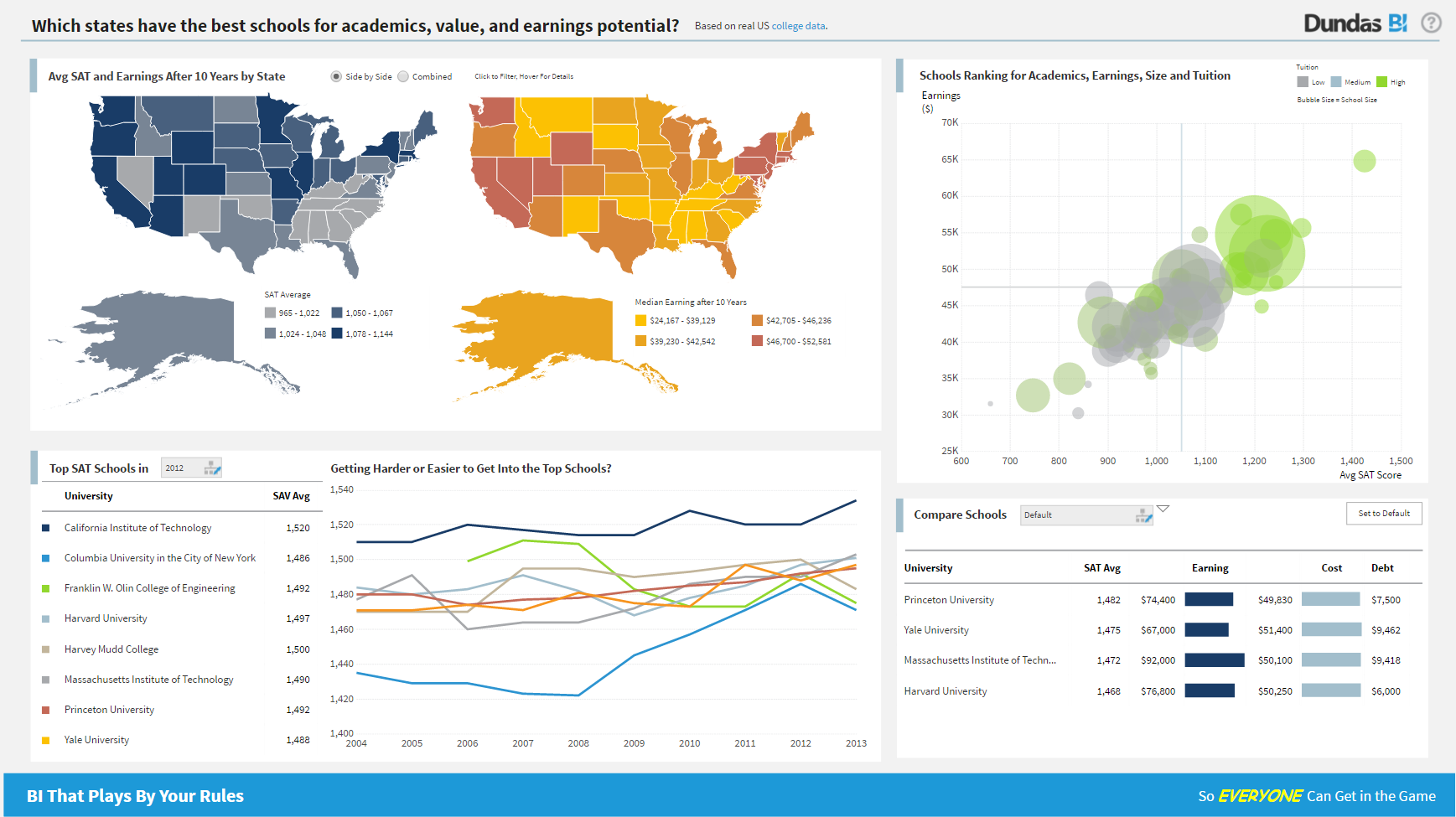
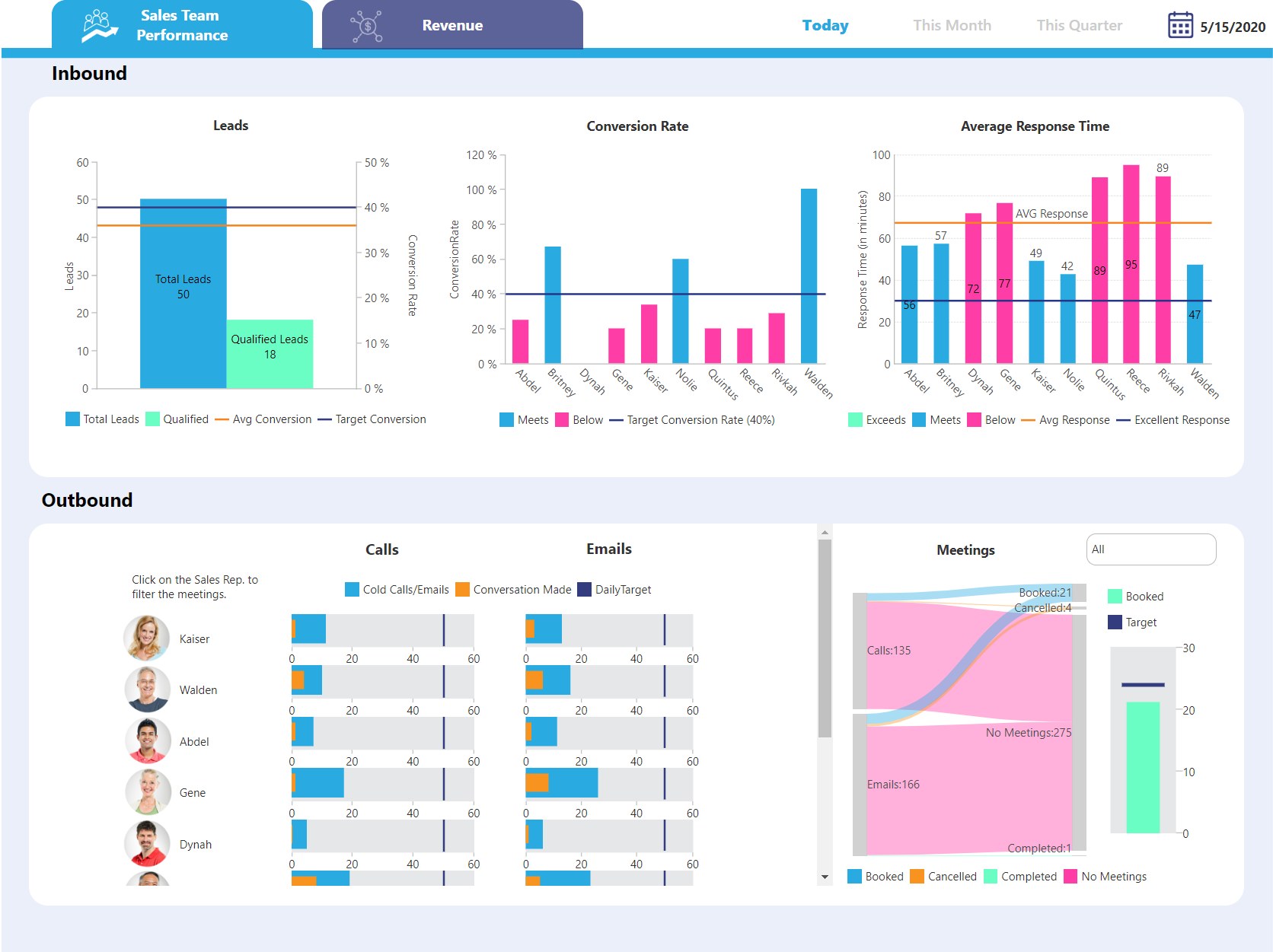
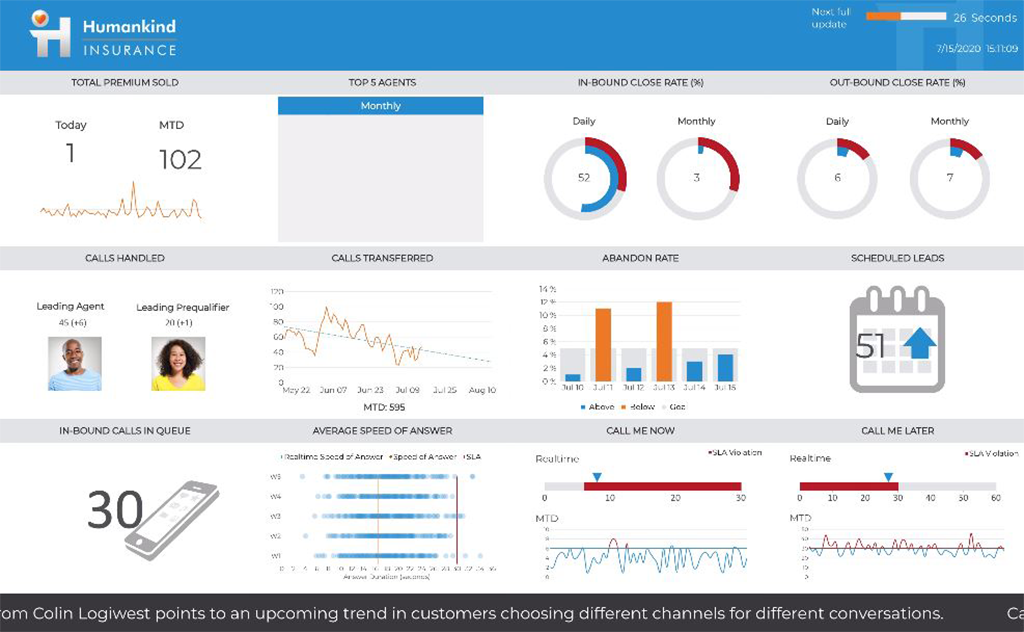
Logi Symphony is a business intelligence and data visualization software that includes customizable dashboards, reporting, and visual data analytics. It can be integrated into users’ existing business applications and its visualization and reporting tools can be customized.
N/A
SharePoint
Score7.9 out of 10
N/A
Microsoft's SharePoint is an Intranet solution that enables users to share and manage content, knowledge, and applications to empower teamwork, quickly find information, and collaborate across the organization.
$5
Per User Per Month
Pricing
Logi Symphony
SharePoint
Editions & Modules
No answers on this topic
Plan 1
$5.00
Per User Per Month
Plan 2
$10.00
Per User Per Month
Office 365 E3
$20.00
Per User Per Month
Offerings
Pricing Offerings
Logi Symphony
SharePoint
Free Trial
Yes
Yes
Free/Freemium Version
No
No
Premium Consulting/Integration Services
Yes
No
Entry-level Setup Fee
No setup fee
No setup fee
Additional Details
—
—
More Pricing Information
Community Pulse
Logi Symphony
SharePoint
Considered Both Products
Insightsoftware, Inc
Verified User
Chose Logi Symphony
The feature set is richer, and price is reasonable. We felt we were paying more for Tableau's name than their features, as updates are slow.
A de minimis incentive was given to thank the reviewer for their time. The incentive was not used to bias or drive a particular response, nor was the incentive contingent on a positive endorsement. More Info
Manager - Business Intelligence & Data Architecture in Information Technology at Leidos (Hospital & Health Care, 501-1000 employees)
Chose Logi Symphony
We were a user of Dundas Dashboard previously. We had explored other tools, but we ended up upgrading to Dundas BI because of the HTML 5 compliance (no more Silverlight requirement), ease of use and time to market. The other tools could do the job, but they were not as flexible …
A de minimis incentive was given to thank the reviewer for their time. The incentive was not used to bias or drive a particular response, nor was the incentive contingent on a positive endorsement. More Info
Verified User
Chose Logi Symphony
We found that Dundas BI struck the perfect balance between ease of use and flexibility, while still remaining within a reasonable budget. Other products were either to technical, lacked functionality, or "broke the bank".
A de minimis incentive was given to thank the reviewer for their time. The incentive was not used to bias or drive a particular response, nor was the incentive contingent on a positive endorsement. More Info
For all the scenarios I have so far worked on or I am currently working on, Dundas BI has proved to be more than adequate and apt to handle all of those. It is a very easy-to-use tool with quick shortcuts enabling you to prepare ad-hoc reports or dashboards in a matter of minutes.
A de minimis incentive was given to thank the reviewer for their time. The incentive was not used to bias or drive a particular response, nor was the incentive contingent on a positive endorsement. More Info
It's Microsoft, so it rarely goes down or unnecessarily limits access. It works, though page load times can be long if you have lots of data. I feel like the Mac vs. PC divide has started to show up for MS products, but SharePoint works well with both.
Project organization from Development to Production, you get a production and development license but I think the best way to do it is with DEV and Prod project in the Production box. Use the development box for testing updates and really crazy things. With the Dev and Prod projects on the same box, you just publish from Dev to Prod and you are done. Users only have access to the Prod projects so no one can mess up what you are working on.
Security - If you have a hierarchy (subsidiaries, divisions, department, teams) and you want each group to see only their data, then Security hierarchies are for you!
Dependent filters! What's this you ask? Here is an example of how it can be used, in your company you have departments and who works for what department is in your database. You make a dashboard that has a department filter (only show these departments), a managers filter, and employee filter. Not every manager or employee is in multiple departments usually only one. With dependent filters you can say that the manager and employee filter are dependent on what is selected in the departments filter so when you go to filter them they only show the managers or employees that are part of that department, and you can even it do so employees are not only dependent on department but on manager as well. Then it gets even better as it can be done in reverse as well so when you select a manager then go to the department it only shows the departments he works for (there are better situations where this is more useful).
It is scriptable! From calculate columns, null replacements, button actions, load actions, hover over events there a way to do what you want.
They are constantly improving and listens to your suggestions.
A de minimis incentive was given to thank the reviewer for their time. The incentive was not used to bias or drive a particular response, nor was the incentive contingent on a positive endorsement. More Info
A de minimis incentive was given to thank the reviewer for their time. The incentive was not used to bias or drive a particular response, nor was the incentive contingent on a positive endorsement. More Info
Not too many cons for how we use the application. It really is easy and powerful. Very powerful.
Licensing is one thing that could be looked into. It is simple, but a little confusing. For example, if I get a license today, but a new release comes out tomorrow, it seems that the license doesn't work with the new release. Maybe that is by design, but it would be nice to clearly understand.
Windows Explorer users have some difficulty having to constantly UPLOAD / DOWNLOAD files. Specifically on the DOWNLOAD when they are used to Drag & Drop in & out of LOCAL folders via Window's explorer.
Microsoft SharePoint supports multiple "library" types. When implementing our "image" library the search function is done via "tags" and boolean logic. This is challenging to most end users. I'd like our users to be able to search our Microsoft SharePoint image library without having to enter KEYWORD or other BOOLEAN logic.
Microsoft SharePoint can also be an internal website for each department or company wide communication tool but I believe these features are geared for much larger organizations. Since we are a SMB we really aren't using these features. So maybe something more useful to SMBs would be nice.
A de minimis incentive was given to thank the reviewer for their time. The incentive was not used to bias or drive a particular response, nor was the incentive contingent on a positive endorsement. More Info
It's integral to our business. It's already included with most of the Office 365 licensing we buy, so the cost is effectively zero. It stores our files, it is the foundation for custom applications, and Microsoft only continues to enhance its functionality and its connections to other Microsoft tools. SharePoint just keeps getting better and better.
A de minimis incentive was given to thank the reviewer for their time. The incentive was not used to bias or drive a particular response, nor was the incentive contingent on a positive endorsement. More Info
We are still in the implementation phase, but so far we are finding it to be easy to use and learn. The eLearning courses that they have made available for free, as well as User Forums and other training videos have made even difficult concepts easier to understand.
No usability issues reported. Individual teams also have allocated areas which replace legacy shared drives on local LANs. Access to Sharepoint resources is fully integrated with corporate Active Directory with additional two-factor authentication required for administrative users. Users have access to Microsoft Services Hub which allows you to create, manage, and track support requests while staying current on Microsoft technologies with access to select self-paced learning paths
A de minimis incentive was given to thank the reviewer for their time. The incentive was not used to bias or drive a particular response, nor was the incentive contingent on a positive endorsement. More Info
We have bi-weekly calls with our Success Manager, as well as access to support as needed. Any question that I have had, multiple people have been willing and able to jump on a call to talk me through it, or send an email with the solution
A de minimis incentive was given to thank the reviewer for their time. The incentive was not used to bias or drive a particular response, nor was the incentive contingent on a positive endorsement. More Info
The face to face training I received was on SharePoint Administration. It was rushed as there was a lot of information to cover and the application of the labs weren't that great either. I like to be able to relate what I am learning to what I am currently doing.
I like to learn at my own pace and online training allows for that. Additionally, you can skip through pieces of content that you already know or are already comfortable with. Microsoft actually offers great videos on their website for basic fundamental SharePoint Training. I have used these training videos in some of my own training sessions with end users.
Per dollar spent, it offers the widest range of features of the tools that we evaluated. It offers lots of options for how to configure your environment, though they are not always intuitive to figure out. Having an ETL layer was a must have for us, as well as the ability to host to secure HIPAA compliance. It is not a replacement for ad hoc reporting, but does a great job of creating parameterized reports and dashboards that look great.
A de minimis incentive was given to thank the reviewer for their time. The incentive was not used to bias or drive a particular response, nor was the incentive contingent on a positive endorsement. More Info
The reasons for selecting MS SharePoint are: SharePoint provides ease of use and web design assistance and support SharePoint helps you schedule your content for publishing. enables users to share documents with external parties and offers a better internal structure of the content and better indexing and searching capabilities.
A de minimis incentive was given to thank the reviewer for their time. The incentive was not used to bias or drive a particular response, nor was the incentive contingent on a positive endorsement. More Info
A de minimis incentive was given to thank the reviewer for their time. The incentive was not used to bias or drive a particular response, nor was the incentive contingent on a positive endorsement. More Info
A de minimis incentive was given to thank the reviewer for their time. The incentive was not used to bias or drive a particular response, nor was the incentive contingent on a positive endorsement. More Info