Microsoft PowerPoint is a presentation software designed to allow users to create slide-based presentations including video and images, as well as slide transitions and animations.
$139.99
UiPath Task Capture
Score9.9 out of 10
N/A
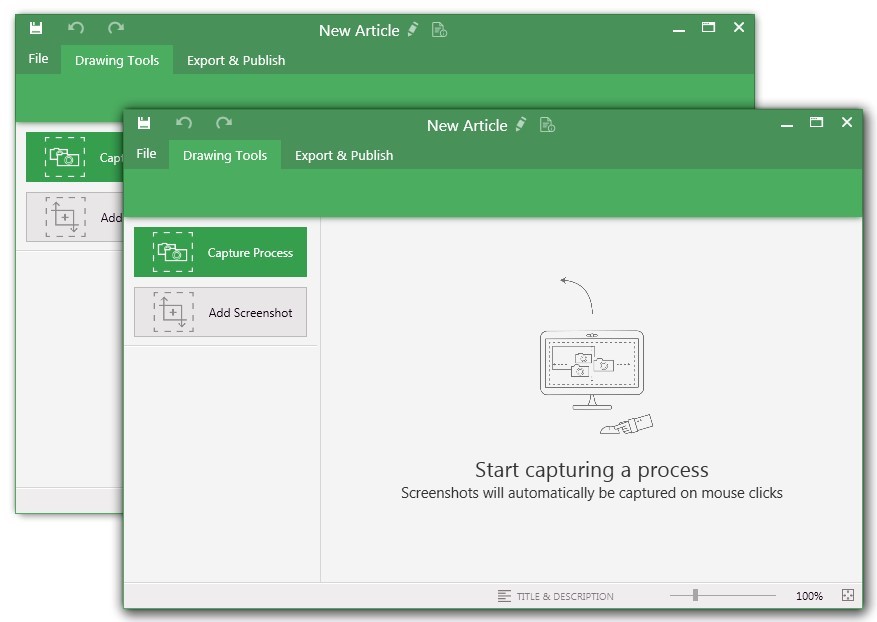
UiPath Task Capture (formerly StepShot, acquired October 2019) is a tool designed for quick and easy step-by-step documentation. During a recording mode, the software creates a separate screenshot on every click, groups them into a manual with automatically added metadata. Users can annotate captured images and structure documents in the way they want them to look.
N/A
Pricing
Microsoft Powerpoint
UiPath Task Capture
Editions & Modules
One Time Purchase
$139.99
No answers on this topic
Offerings
Pricing Offerings
Microsoft Powerpoint
UiPath Task Capture
Free Trial
No
Yes
Free/Freemium Version
No
Yes
Premium Consulting/Integration Services
No
Yes
Entry-level Setup Fee
No setup fee
No setup fee
Additional Details
—
We have some discounts available all the time depending on the amount of ordered licenses.
The learning curve with Microsoft Powerpoint is not too steep, and most everyone can create really nice-looking presentations. The thing I like most about the new advancements in Microsoft Powerpoint comes to formatting. If you are creating a newsletter, don't get bogged down by all of the annoying formatting rules and issues you would have if creating in Publisher or Word. Microsoft Powerpoint makes it very simple. You can add text boxes and move them anywhere on the page. The templates are a nice touch, but they could use more, as most of these are outdated. I believe there are many free websites for downloading more templates.
A de minimis incentive was given to thank the reviewer for their time. The incentive was not used to bias or drive a particular response, nor was the incentive contingent on a positive endorsement. More Info
StepShot is perfect for showing your audience how they are supposed to navigate a new system you have implemented. You can take them from a login screen all the way through any technical process you want them to follow. The product is not ideal, however, for documenting a process that does not have tangible steps. For example, a process we have created includes some reflective thinking about alignment or outcomes in order to work, this can be articulated in the text area of the screen captures but doesn't really capture our message.
A de minimis incentive was given to thank the reviewer for their time. The incentive was not used to bias or drive a particular response, nor was the incentive contingent on a positive endorsement. More Info
A de minimis incentive was given to thank the reviewer for their time. The incentive was not used to bias or drive a particular response, nor was the incentive contingent on a positive endorsement. More Info
A de minimis incentive was given to thank the reviewer for their time. The incentive was not used to bias or drive a particular response, nor was the incentive contingent on a positive endorsement. More Info
A de minimis incentive was given to thank the reviewer for their time. The incentive was not used to bias or drive a particular response, nor was the incentive contingent on a positive endorsement. More Info
The "export & publish" button is kind of tiny and tucked away. It should be more prominent. After not using it for a couple weeks, I always forget where it is.
Updates aren't as frequent. Which is fine, since I haven't come across many bugs, it would just be cool to see some added features/functionality a bit more often.
The blur looks fine in the preview mode, but when exported, it's not the best.
A de minimis incentive was given to thank the reviewer for their time. The incentive was not used to bias or drive a particular response, nor was the incentive contingent on a positive endorsement. More Info
It’s great overall! I can think of a few improvements that would make it a 10, for example: better Smart Art graphs, automatic distribution of columns and rows in tables, and being able to more easily save templates for graphs. For example, if I could determine that a same brand name in all graphs would have a specific color, it would be great
A de minimis incentive was given to thank the reviewer for their time. The incentive was not used to bias or drive a particular response, nor was the incentive contingent on a positive endorsement. More Info
I've never had any issues with its availability. As it is installed on my machine, it's ready when I need it, online or offline. Creating large slide decks with complex elements like video and audio doesn't affect its stability. The only limitation would be the capability of your own computer, as far as I can tell.
A de minimis incentive was given to thank the reviewer for their time. The incentive was not used to bias or drive a particular response, nor was the incentive contingent on a positive endorsement. More Info
The performance is very strong. It loads reasonably quickly. Large presentations load relatively quickly too, given their complexity, and once loaded each slide is readily available. It's easy to scroll up and down through your slide deck and go to the slide you want. Videos, pictures and music all load on demand, controllable by clicks.
A de minimis incentive was given to thank the reviewer for their time. The incentive was not used to bias or drive a particular response, nor was the incentive contingent on a positive endorsement. More Info
I have never had to use the actual support. Most of my questions are "how to" questions and there is a rich internet full of users sharing their tips and tricks with this application. Sometimes I find the answers on Microsoft support site but often I don't
A de minimis incentive was given to thank the reviewer for their time. The incentive was not used to bias or drive a particular response, nor was the incentive contingent on a positive endorsement. More Info
I have only run into an issue once, which I believe was due to a newly released feature (cloud storage). I was running into issues with the functionality on my Mac. The team was incredibly helpful in both troubleshooting the issue by jumping on screen sharing sessions, as well as providing multiple releases for me to test to fix the problem!
A de minimis incentive was given to thank the reviewer for their time. The incentive was not used to bias or drive a particular response, nor was the incentive contingent on a positive endorsement. More Info
Adobe Illustrator is an excellent software but it's not easy to use for [everyone without] having any training or previous experience in working with illustrator. Microsoft Powerpoint is very easy to use and it's fantastic as it saves time more than illustrator. Another thing is it takes small space while illustrator takes a significant amount of space in the business machine
A de minimis incentive was given to thank the reviewer for their time. The incentive was not used to bias or drive a particular response, nor was the incentive contingent on a positive endorsement. More Info
A de minimis incentive was given to thank the reviewer for their time. The incentive was not used to bias or drive a particular response, nor was the incentive contingent on a positive endorsement. More Info
Scaling up use of Microsoft Powerpoint would be a simple case of buying further licences. The software is intuitive and therefore training demands from scaling it to more departments or more individuals would be relatively straightforward. Google Slides may be easier to share among those organisations that use Google's suite of apps, however.
A de minimis incentive was given to thank the reviewer for their time. The incentive was not used to bias or drive a particular response, nor was the incentive contingent on a positive endorsement. More Info
A de minimis incentive was given to thank the reviewer for their time. The incentive was not used to bias or drive a particular response, nor was the incentive contingent on a positive endorsement. More Info
This has saved us MANY HOURS in either walking clients through processes in person or having to create a one-off guide through taking screenshots and creating our own documents with the screenshots hand placed.
Client satisfaction is high when they receive these guides. It is documentation that they can refer to at anytime that is personalized to their use or individual needs.
A de minimis incentive was given to thank the reviewer for their time. The incentive was not used to bias or drive a particular response, nor was the incentive contingent on a positive endorsement. More Info