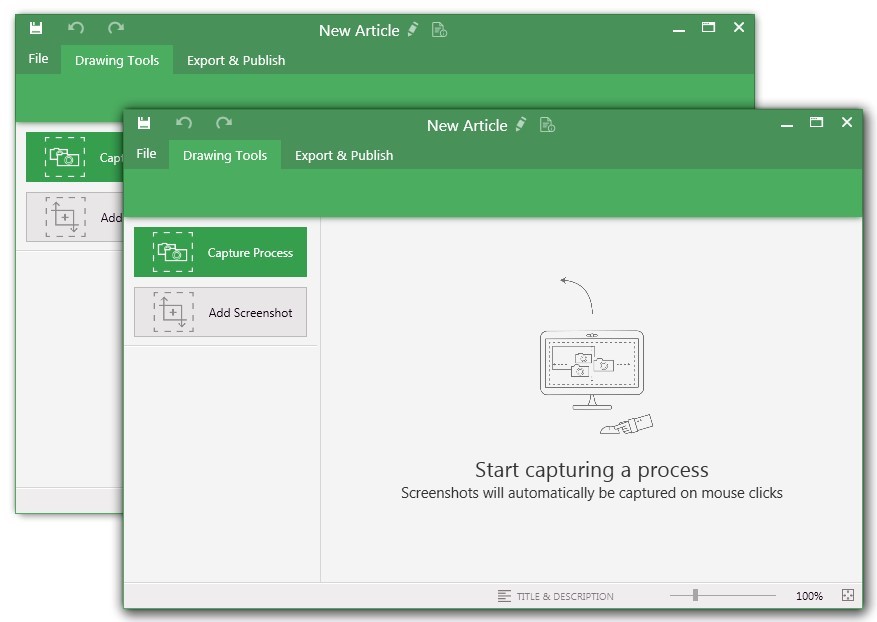
UiPath Task Capture (formerly StepShot, acquired October 2019) is a tool designed for quick and easy step-by-step documentation. During a recording mode, the software creates a separate screenshot on every click, groups them into a manual with automatically added metadata. Users can annotate captured images and structure documents in the way they want them to look.
N/A
Zapier
Score8.9 out of 10
N/A
The Zapier Automation Platform designed to integrate data between web apps. It is scaled for small to mid-sized businesses, with a functional but limited free version of the program.
$29.99
per month 750 tasks per month
Pricing
UiPath Task Capture
Zapier
Editions & Modules
No answers on this topic
Starter
$29.99
per month 750 tasks per month
Professional
$73.50
per month 2k tasks per month
Team
$103.50
per month 2k tasks per month
Company
Contact Sales
Offerings
Pricing Offerings
UiPath Task Capture
Zapier
Free Trial
Yes
No
Free/Freemium Version
Yes
Yes
Premium Consulting/Integration Services
Yes
No
Entry-level Setup Fee
No setup fee
No setup fee
Additional Details
We have some discounts available all the time depending on the amount of ordered licenses.
33% discount for annual pricing.
More Pricing Information
Community Pulse
UiPath Task Capture
Zapier
Considered Both Products
UiPath
Verified User
Chose UiPath Task Capture
While StepShot provides us with more options for modifying our screen recording and adding helper information for our audience, iSpring is a little more accessible since you can connect directly to YouTube for videos. Since most of our work doesn't require a video tutorial, we …
A de minimis incentive was given to thank the reviewer for their time. The incentive was not used to bias or drive a particular response, nor was the incentive contingent on a positive endorsement. More Info
StepShot is perfect for showing your audience how they are supposed to navigate a new system you have implemented. You can take them from a login screen all the way through any technical process you want them to follow. The product is not ideal, however, for documenting a process that does not have tangible steps. For example, a process we have created includes some reflective thinking about alignment or outcomes in order to work, this can be articulated in the text area of the screen captures but doesn't really capture our message.
A de minimis incentive was given to thank the reviewer for their time. The incentive was not used to bias or drive a particular response, nor was the incentive contingent on a positive endorsement. More Info
If you have processes that are now managed and controlled using a spreadsheet, Zapier will give you a lot more control over what is happening and will help you increase productivity by eliminating simple steps such as sending emails and sharing information with your colleagues. It frees time for very transactional activities.
A de minimis incentive was given to thank the reviewer for their time. The incentive was not used to bias or drive a particular response, nor was the incentive contingent on a positive endorsement. More Info
A de minimis incentive was given to thank the reviewer for their time. The incentive was not used to bias or drive a particular response, nor was the incentive contingent on a positive endorsement. More Info
Ease of use - multiple people in the organization can set up and run Zaps per their specific use cases without much training.
Connectivity - Zapier is able to connect to multiple applications we use on a regular basis.
Functionality - Zapier provides embedded functionality within the app itself (email, data conversion), but also appropriate triggers and actions for apps it connects to.
Versatile - Zapier can execute complicated and simple tasks and thus has many use cases.
A de minimis incentive was given to thank the reviewer for their time. The incentive was not used to bias or drive a particular response, nor was the incentive contingent on a positive endorsement. More Info
The "export & publish" button is kind of tiny and tucked away. It should be more prominent. After not using it for a couple weeks, I always forget where it is.
Updates aren't as frequent. Which is fine, since I haven't come across many bugs, it would just be cool to see some added features/functionality a bit more often.
The blur looks fine in the preview mode, but when exported, it's not the best.
A de minimis incentive was given to thank the reviewer for their time. The incentive was not used to bias or drive a particular response, nor was the incentive contingent on a positive endorsement. More Info
A de minimis incentive was given to thank the reviewer for their time. The incentive was not used to bias or drive a particular response, nor was the incentive contingent on a positive endorsement. More Info
A de minimis incentive was given to thank the reviewer for their time. The incentive was not used to bias or drive a particular response, nor was the incentive contingent on a positive endorsement. More Info
The interface is very user-friendly, and there are also many tools to help a brand-new user get started. For example, you can put your Zap idea into the AI bot, and it will basically build a shell of your Zap to get started on. The format for each step within a Zap is also very helpful (set up the connection/app, set up the fields/details, then test).
A de minimis incentive was given to thank the reviewer for their time. The incentive was not used to bias or drive a particular response, nor was the incentive contingent on a positive endorsement. More Info
I have only run into an issue once, which I believe was due to a newly released feature (cloud storage). I was running into issues with the functionality on my Mac. The team was incredibly helpful in both troubleshooting the issue by jumping on screen sharing sessions, as well as providing multiple releases for me to test to fix the problem!
A de minimis incentive was given to thank the reviewer for their time. The incentive was not used to bias or drive a particular response, nor was the incentive contingent on a positive endorsement. More Info
Before we purchased Zapier, I contacted support and asked them if Zapier could support my intended workflow (this is actually a selection on their support form - awesome). Within 2 hours, I was contacted by a support team member who seemed sure it would work, but granted me premium access for 2 weeks to try it out for myself. Sure enough, it did! Ever since then, support has replied rapidly to any problems I have experienced and answered my questions within a few sentences.
A de minimis incentive was given to thank the reviewer for their time. The incentive was not used to bias or drive a particular response, nor was the incentive contingent on a positive endorsement. More Info
A de minimis incentive was given to thank the reviewer for their time. The incentive was not used to bias or drive a particular response, nor was the incentive contingent on a positive endorsement. More Info
We actually utilize both Integromat and Zapier at our company, for all the reasons detailed in this review. Though Zapier is excellent for simple client integrations, we often run into internal use cases that require complexity that Zapier cannot provide. Specifically working with API calls (not just webhooks), complex multi-step integrations with Routing/parsing/etc, and large volume integrations. Integromat is perfect for these use cases, but doesn’t provide the simplicity and account scalability that Zapier offers.
A de minimis incentive was given to thank the reviewer for their time. The incentive was not used to bias or drive a particular response, nor was the incentive contingent on a positive endorsement. More Info
This has saved us MANY HOURS in either walking clients through processes in person or having to create a one-off guide through taking screenshots and creating our own documents with the screenshots hand placed.
Client satisfaction is high when they receive these guides. It is documentation that they can refer to at anytime that is personalized to their use or individual needs.
A de minimis incentive was given to thank the reviewer for their time. The incentive was not used to bias or drive a particular response, nor was the incentive contingent on a positive endorsement. More Info
A de minimis incentive was given to thank the reviewer for their time. The incentive was not used to bias or drive a particular response, nor was the incentive contingent on a positive endorsement. More Info