Microsoft Power Automate is an advanced automation platform offering a range of features, including AI-powered automation, robotic process automation (RPA), business process automation (BPA), digital process automation (DPA), and process/task mining. The platform aims to empower organizations to securely automate their operations at scale by leveraging low-code and AI technologies.
$15
per month per user
UiPath Task Capture
Score9.9 out of 10
N/A
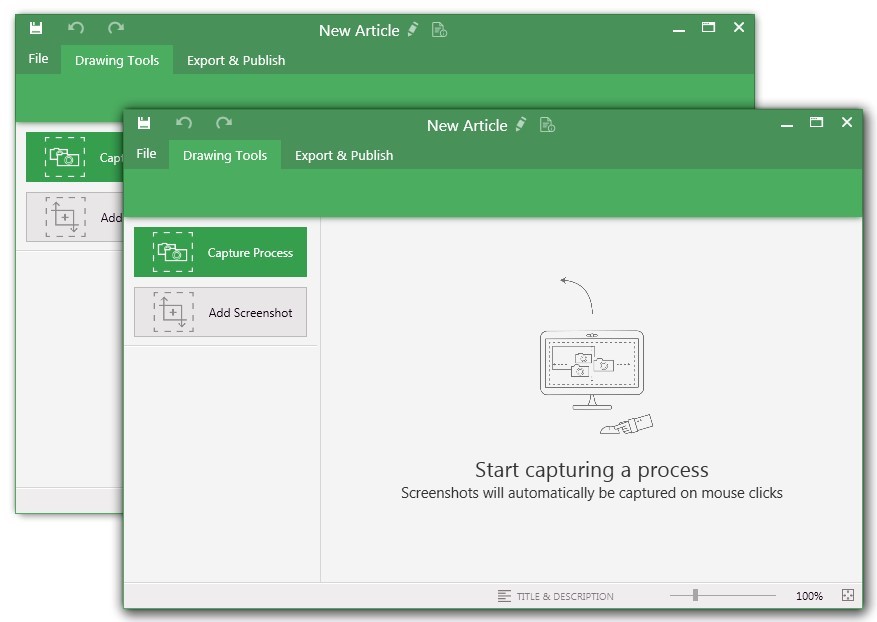
UiPath Task Capture (formerly StepShot, acquired October 2019) is a tool designed for quick and easy step-by-step documentation. During a recording mode, the software creates a separate screenshot on every click, groups them into a manual with automatically added metadata. Users can annotate captured images and structure documents in the way they want them to look.
N/A
Pricing
Microsoft Power Automate
UiPath Task Capture
Editions & Modules
Power Automate Premium
$15
per month per user
Power Automate Process
$150
per month per bot
Hosted RPA add-on
$215
per month per bot
Process Mining add-on
$5,000
per month per tenant
No answers on this topic
Offerings
Pricing Offerings
Microsoft Power Automate
UiPath Task Capture
Free Trial
Yes
Yes
Free/Freemium Version
Yes
Yes
Premium Consulting/Integration Services
No
Yes
Entry-level Setup Fee
No setup fee
No setup fee
Additional Details
—
We have some discounts available all the time depending on the amount of ordered licenses.
Very useful RPA tools for automating processes with minimal coding and drag-and-drop functionality, with a wide variety of triggers, including scheduled time-based triggers and activity-based triggers, such as modifying a file/list in SharePoint to run a Power Automate flow. Very easy-to-use UI with native integration with every Microsoft product, and a very low automation failure rate for deployed workflows.
A de minimis incentive was given to thank the reviewer for their time. The incentive was not used to bias or drive a particular response, nor was the incentive contingent on a positive endorsement. More Info
StepShot is perfect for showing your audience how they are supposed to navigate a new system you have implemented. You can take them from a login screen all the way through any technical process you want them to follow. The product is not ideal, however, for documenting a process that does not have tangible steps. For example, a process we have created includes some reflective thinking about alignment or outcomes in order to work, this can be articulated in the text area of the screen captures but doesn't really capture our message.
A de minimis incentive was given to thank the reviewer for their time. The incentive was not used to bias or drive a particular response, nor was the incentive contingent on a positive endorsement. More Info
A de minimis incentive was given to thank the reviewer for their time. The incentive was not used to bias or drive a particular response, nor was the incentive contingent on a positive endorsement. More Info
A de minimis incentive was given to thank the reviewer for their time. The incentive was not used to bias or drive a particular response, nor was the incentive contingent on a positive endorsement. More Info
A de minimis incentive was given to thank the reviewer for their time. The incentive was not used to bias or drive a particular response, nor was the incentive contingent on a positive endorsement. TR verified that a representative sample of customers was invited. More Info
The "export & publish" button is kind of tiny and tucked away. It should be more prominent. After not using it for a couple weeks, I always forget where it is.
Updates aren't as frequent. Which is fine, since I haven't come across many bugs, it would just be cool to see some added features/functionality a bit more often.
The blur looks fine in the preview mode, but when exported, it's not the best.
A de minimis incentive was given to thank the reviewer for their time. The incentive was not used to bias or drive a particular response, nor was the incentive contingent on a positive endorsement. More Info
The tool is very useful when used with its various native connectors, taking great advantage of the integration between the components and systems of the Office365 universe. However, its cost is still high, and automation using more advanced components containing AI resources becomes unfeasible for some companies. Due to the financial crisis that many companies are currently experiencing, investment in automation systems or tools is taking a back seat.
A de minimis incentive was given to thank the reviewer for their time. The incentive was not used to bias or drive a particular response, nor was the incentive contingent on a positive endorsement. More Info
Power Automate features a clean and intuitive user interface that allows users to create, manage, and monitor workflows easily. The UI is designed to be accessible to both technical and non-technical users, with drag-and-drop functionality for building workflows. Power Automate supports integration with a wide range of Microsoft and third-party applications. This flexibility in integration allows users to automate workflows across various systems, enhancing overall productivity and efficiency.
A de minimis incentive was given to thank the reviewer for their time. The incentive was not used to bias or drive a particular response, nor was the incentive contingent on a positive endorsement. TR verified that a representative sample of customers was invited. More Info
both Community support and Microsoft official support typically respond to (and resolve) reported issues in a VERY expedient manner, usually going above and beyond for education and bugfixing. I have been thoroughly impressed with the level of support I had been provided in the past.
A de minimis incentive was given to thank the reviewer for their time. The incentive was not used to bias or drive a particular response, nor was the incentive contingent on a positive endorsement. More Info
I have only run into an issue once, which I believe was due to a newly released feature (cloud storage). I was running into issues with the functionality on my Mac. The team was incredibly helpful in both troubleshooting the issue by jumping on screen sharing sessions, as well as providing multiple releases for me to test to fix the problem!
A de minimis incentive was given to thank the reviewer for their time. The incentive was not used to bias or drive a particular response, nor was the incentive contingent on a positive endorsement. More Info
after reviewing the main features of Power Automate, the Microsoft trainer focused on some of our real life use cases implementation, from simple to more advanced.
A de minimis incentive was given to thank the reviewer for their time. The incentive was not used to bias or drive a particular response, nor was the incentive contingent on a positive endorsement. TR verified that a representative sample of customers was invited. More Info
although it was productive, it is more difficult to stay focused and in a 7 hours a day online training (including screen share issues and the fact that the trainer just can't precisely show the exact location of your mistake)
A de minimis incentive was given to thank the reviewer for their time. The incentive was not used to bias or drive a particular response, nor was the incentive contingent on a positive endorsement. TR verified that a representative sample of customers was invited. More Info
Overall, our experience implementing Microsoft Power Automate has been positive, with a relatively low barrier to entry and a fast time-to-value—especially because it integrates natively with Microsoft 365, which we were already using extensively. With Respect to migration, I had a very good experience where existing workflows were reviewed and simplified. Unnecessary steps were removed. Business rules were reimplemented using Power Automate logic. We migrated Approval workflows, email-based notifications, SharePoint-centric processes, and simple integrations.
A de minimis incentive was given to thank the reviewer for their time. The incentive was not used to bias or drive a particular response, nor was the incentive contingent on a positive endorsement. More Info
Microsoft Power Automate is worlds ahead of Zapier in so many ways. The looping, DOM access, and flow controls are much better. I feel that accessing different data within previous connectors used in a flow is much easier in Microsoft Power Automate as well. The custom connector creation process is a lot more pleasant in Microsoft Power Automate. The DateTime data type is handles MUCH better in Microsoft Power Automate, which is reason enough to use it.
A de minimis incentive was given to thank the reviewer for their time. The incentive was not used to bias or drive a particular response, nor was the incentive contingent on a positive endorsement. TR verified that a representative sample of customers was invited. More Info
A de minimis incentive was given to thank the reviewer for their time. The incentive was not used to bias or drive a particular response, nor was the incentive contingent on a positive endorsement. More Info
A de minimis incentive was given to thank the reviewer for their time. The incentive was not used to bias or drive a particular response, nor was the incentive contingent on a positive endorsement. TR verified that a representative sample of customers was invited. More Info
Microsoft's professional services provide hands-on support throughout the implementation lifecycle of Power Automate.This includes initial setup, configuration, integration with existing systems, testing, and deployment. They ensure that workflows are correctly designed, optimized for performance, and aligned with security best practices.
A de minimis incentive was given to thank the reviewer for their time. The incentive was not used to bias or drive a particular response, nor was the incentive contingent on a positive endorsement. TR verified that a representative sample of customers was invited. More Info
You can automate a lot of process very easy like automatic mails for status updates and such. This will save a lot of time and is more accurate, faster and up-to-date than a user can be.
Task approval is centralized and automatic reminders save us a lot of time.
The ROI is good if you have a lot of use cases and things to automate
A de minimis incentive was given to thank the reviewer for their time. The incentive was not used to bias or drive a particular response, nor was the incentive contingent on a positive endorsement. TR verified that a representative sample of customers was invited. More Info
This has saved us MANY HOURS in either walking clients through processes in person or having to create a one-off guide through taking screenshots and creating our own documents with the screenshots hand placed.
Client satisfaction is high when they receive these guides. It is documentation that they can refer to at anytime that is personalized to their use or individual needs.
A de minimis incentive was given to thank the reviewer for their time. The incentive was not used to bias or drive a particular response, nor was the incentive contingent on a positive endorsement. More Info