Mouseflow is a behavior analytics tool used by more than 190.000 digital marketing, UX, Product, Startups and Enterprise clients to optimize their website experiences. With Mouseflow, the user can: Find out what happens between visitors' clicks through watching video recordings of their sessions. Build 6 types of heatmaps for pages automatically to understand what is getting their attention. Set up funnels to watch where and why visitors drop. Use form…
$39
per month
UiPath Task Capture
Score9.9 out of 10
N/A
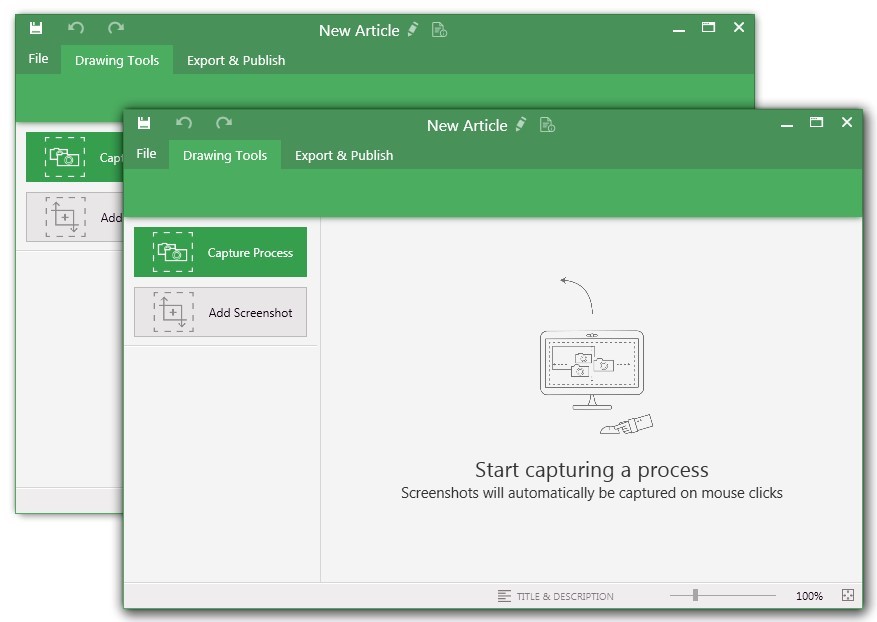
UiPath Task Capture (formerly StepShot, acquired October 2019) is a tool designed for quick and easy step-by-step documentation. During a recording mode, the software creates a separate screenshot on every click, groups them into a manual with automatically added metadata. Users can annotate captured images and structure documents in the way they want them to look.
N/A
Pricing
Mouseflow
UiPath Task Capture
Editions & Modules
Starter
$39
per month
Growth
$129
per month
Business
$259
per month
Pro
$499
per month
No answers on this topic
Offerings
Pricing Offerings
Mouseflow
UiPath Task Capture
Free Trial
Yes
Yes
Free/Freemium Version
Yes
Yes
Premium Consulting/Integration Services
No
Yes
Entry-level Setup Fee
No setup fee
No setup fee
Additional Details
There is a discount applied to the price if a customer commits to an annual payment plan.
We have some discounts available all the time depending on the amount of ordered licenses.
Mouseflow is a great when you're working in a busy product development or conversion optimisation environment, and want to understand exactly how customers are interacting with your site or app so you can respond. It's a capable tool that offers some great insight at a fraction of the cost of competitors like SessionCam or ClickTale. It has occasional problems in captures that its competitors suffer from less often, but if you're looking for a general understanding of usage then this is a great tool. It doesn't have built-in integrations with all A/B testing tools, but it does have a built-in Google Tag Manager tag so its very easy to set up without assistance. If you've got the budget to select reliability over cost, then you may choose to opt for a more mature, enterprise offering. But if your budget is limited, or you're just looking to prove the value of session recording as a concept, then Mouseflow will more than do the job.
A de minimis incentive was given to thank the reviewer for their time. The incentive was not used to bias or drive a particular response, nor was the incentive contingent on a positive endorsement. More Info
StepShot is perfect for showing your audience how they are supposed to navigate a new system you have implemented. You can take them from a login screen all the way through any technical process you want them to follow. The product is not ideal, however, for documenting a process that does not have tangible steps. For example, a process we have created includes some reflective thinking about alignment or outcomes in order to work, this can be articulated in the text area of the screen captures but doesn't really capture our message.
A de minimis incentive was given to thank the reviewer for their time. The incentive was not used to bias or drive a particular response, nor was the incentive contingent on a positive endorsement. More Info
Mouseflow does a great job creating wonderful Heat Maps. These allow you to really see how people are interacting with a page. Great data if you want to create better flow in your pages.
The User Session Recordings are also especially useful and when used in conjunction with the heat maps you can really get a feel and a look at how a page is working. This lets you see where people get stuck, elements that might be distracting, etc.
In the area of the heat maps Mouseflow can handle A/B testing which I think is priceless.
Another advantage to Mouseflow is that unlike many of these types of tools Mouseflow integrates with most Web platforms, well beyond WordPress.
A de minimis incentive was given to thank the reviewer for their time. The incentive was not used to bias or drive a particular response, nor was the incentive contingent on a positive endorsement. More Info
A de minimis incentive was given to thank the reviewer for their time. The incentive was not used to bias or drive a particular response, nor was the incentive contingent on a positive endorsement. More Info
The "export & publish" button is kind of tiny and tucked away. It should be more prominent. After not using it for a couple weeks, I always forget where it is.
Updates aren't as frequent. Which is fine, since I haven't come across many bugs, it would just be cool to see some added features/functionality a bit more often.
The blur looks fine in the preview mode, but when exported, it's not the best.
A de minimis incentive was given to thank the reviewer for their time. The incentive was not used to bias or drive a particular response, nor was the incentive contingent on a positive endorsement. More Info
Mouseflow is pretty easy to use. You need to be a core technical person to implement it on your site. Mouseflow provided us a tracking code that need to be installed on the website, and if do not have the knowledge of how to work on the backend of the website, you will not be able to install it. Here you will need the help of a technical person who has a good knowledge of your website platform to install the code on the website. There are also videos available giving insight on how to use the Mouseflow platform. I personally haven't faced any problem while using Mouseflow. Just login to this tool and a dashboard will open in front of you.
This is an area where Mouseflow is quite strong. Not only is the support good but they also have some very good training on the use of the product. There is a nicely laid out section of videos that not only cover the use of the tools functions but also how to use the data that Mouseflow produces. They are doing well in the support area.
A de minimis incentive was given to thank the reviewer for their time. The incentive was not used to bias or drive a particular response, nor was the incentive contingent on a positive endorsement. More Info
I have only run into an issue once, which I believe was due to a newly released feature (cloud storage). I was running into issues with the functionality on my Mac. The team was incredibly helpful in both troubleshooting the issue by jumping on screen sharing sessions, as well as providing multiple releases for me to test to fix the problem!
A de minimis incentive was given to thank the reviewer for their time. The incentive was not used to bias or drive a particular response, nor was the incentive contingent on a positive endorsement. More Info
Mouseflow is a supplement to Google Analytics and improves on some Analytics functions. Mouseflow adds qualitative data to the quantitative data that Analytics provides to help marketers better understand their website visitors
A de minimis incentive was given to thank the reviewer for their time. The incentive was not used to bias or drive a particular response, nor was the incentive contingent on a positive endorsement. More Info
A de minimis incentive was given to thank the reviewer for their time. The incentive was not used to bias or drive a particular response, nor was the incentive contingent on a positive endorsement. More Info
MouseFlow makes a positive impact on our future marketing decisions. We recently had a change in formula for a product and added a variety of ways for people to read about the changes via our website. Mouseflow allowed us to see which method was effective in communicating our message. We were able to replicate the style on other digital platforms.
Mouseflow allows us to save time we would normally spend in developing a website. For example, before building a new website I will spend a couple of weeks analyzing user data via mouseflow. I can clearly see what features are not currently working and where we are loosing people in the current process. This cuts down website revisions by about 10%
A de minimis incentive was given to thank the reviewer for their time. The incentive was not used to bias or drive a particular response, nor was the incentive contingent on a positive endorsement. More Info
This has saved us MANY HOURS in either walking clients through processes in person or having to create a one-off guide through taking screenshots and creating our own documents with the screenshots hand placed.
Client satisfaction is high when they receive these guides. It is documentation that they can refer to at anytime that is personalized to their use or individual needs.
A de minimis incentive was given to thank the reviewer for their time. The incentive was not used to bias or drive a particular response, nor was the incentive contingent on a positive endorsement. More Info